

8 Best AI Training Video Tools for Different Lessons in 2026
My review of eight AI training video tools, covering presenter videos, screen capture, editing, learning delivery and real plan costs.

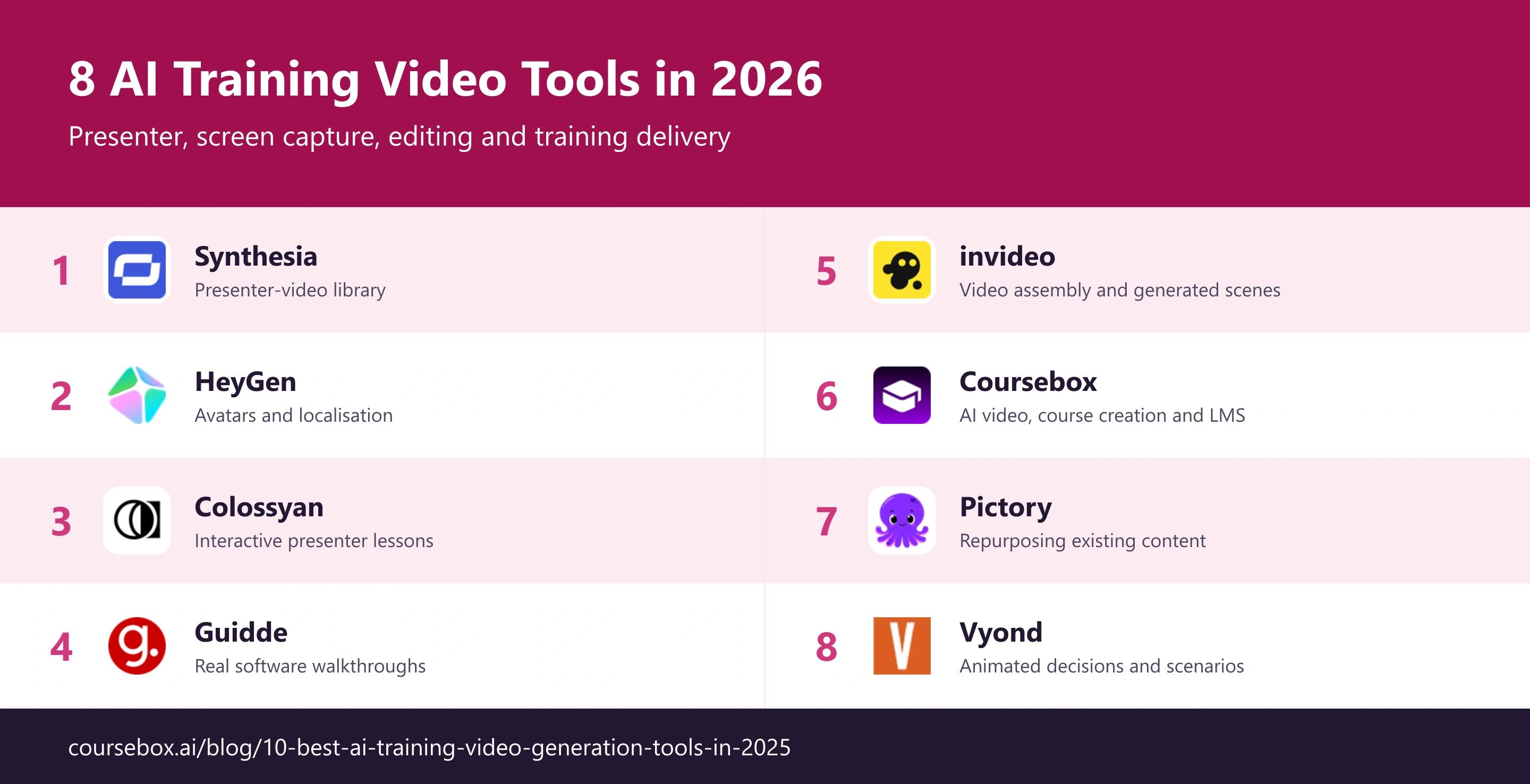
The best AI training video tools in 2026 include Synthesia, HeyGen, Colossyan, Guidde, invideo, Coursebox, Pictory and Vyond. Choose by the lesson and delivery workflow.
- Guidde captures software procedures; Vyond can illustrate scenarios. Both have broader features, but these are useful starting jobs.
- Synthesia, HeyGen and Colossyan offer interactive or LMS-connected options on specific plans. Compare those plans before budgeting.
- Coursebox creates AI presenter videos alongside courses, assessments, learner support and LMS delivery. Video minutes and AI allowances depend on the plan.
Answer three questions to compare the four tools below. The result balances your preferences; the entries explain the features, limits and costs to check.

Create polished training videos instantly
The best AI training video tool depends on what the learner needs to see. A presenter can explain a policy; a screen recording can teach a software task; an animated scene can show a difficult conversation. The next question is how that video becomes an assigned lesson with feedback and a completion record.
I’m as interested in the next update as the first video. When a procedure changes, I want the team to be able to correct the explanation, review any translations and update the lesson. That is the work I’d look at alongside the quality of the presenter or animation.
I work at Coursebox, whose AI training video generator is included here. The comparison covers specialist video tools as well as creating and delivering training in one platform.
How I picked these AI training video tools
I compared these tools using four criteria:
- What you are teaching: Match the format to a real procedure, explanation or decision.
- Editing and updates: Keep an editable source and check how revisions affect translations.
- Learner activity: Compare interactions, assessments and the report you need.
- Total cost: Include generation credits, author seats and the required delivery plan.
The best AI training video tools compared
| Tool | Useful starting job | Buying detail | Starting cost |
|---|---|---|---|
| Synthesia | Presenter-video library | Interactive video on Pro | Starter US$29/mo |
| HeyGen | Avatars and localisation | SCORM on Business | Creator US$29/mo |
| Colossyan | Interactive presenter lessons | Professional: five SCORM exports/month | Professional US$59/mo annual |
| Guidde | Real software walkthroughs | SCORM on Enterprise | Pro US$29/creator/mo |
| invideo | Video assembly and generated scenes | Model credit usage and renewal offer | Starter annual offer €10/seat/mo |
| Coursebox | AI video, course creation and LMS | AI allowances and LMS plan scope | Creator AU$500/yr |
| Pictory | Repurposing existing content | Video, voice and AI allowances | Starter offer US$25/mo annual |
| Vyond | Animated decisions and scenarios | Credits and delivery requirements | Starter US$99/mo |
Prices were checked in October 2026. Billing terms, currencies, introductory offers and feature limits differ; the entry pricing notes explain the relevant restrictions.
The 8 best AI training video tools
1. Synthesia
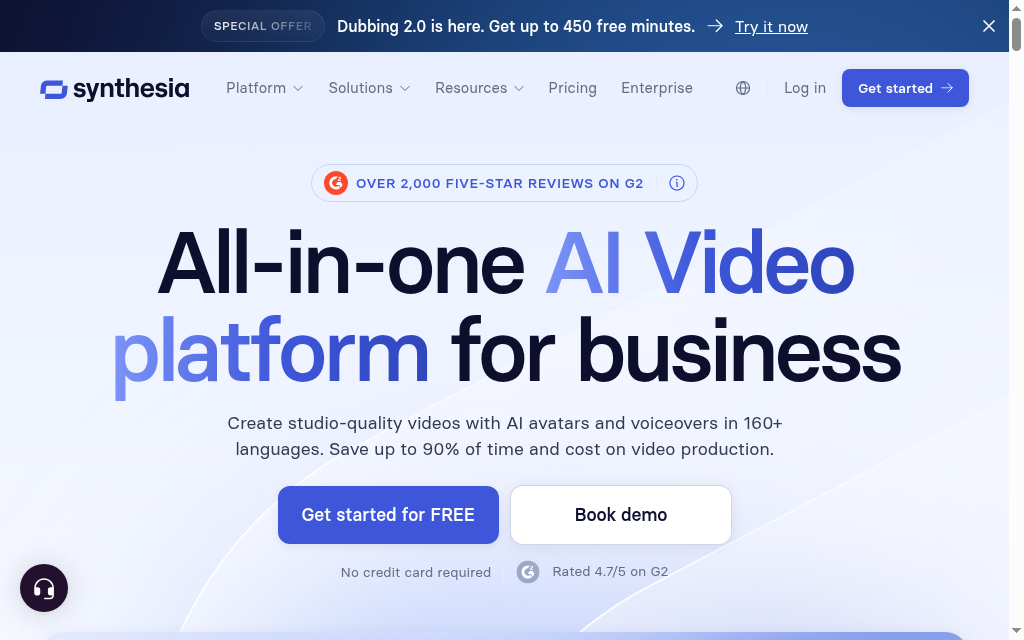
Synthesia suits teams producing a library of presenter-led training without repeatedly filming a person. Start with a script, choose an avatar and build scenes with supporting visuals. A policy explanation can keep the same presenter across later revisions, while local versions can use different languages and voices.
Its current offering extends beyond a flat video file. Pro includes interactive video, and enterprise buyers can discuss LMS delivery and governance. Those features need a plan-level comparison: a Starter video budget should not assume every interaction, translation or enterprise control is included. AI credits also cover different generation tasks, so estimate the workload from finished minutes and the revisions each lesson needs.
My take: What stood out in my review was the repeatable presentation format. It is useful for explaining a policy consistently, but a presenter cannot demonstrate a real software interface or physical task by itself. I would put the actual screen or approved process footage into the lesson and use the avatar for explanation.
My verdict: Choose Synthesia for a maintained presenter-video library. For a click-by-click software guide, compare Guidde; for video, assessments and learner support in one training platform, compare Coursebox.
Pricing: Starter is US$29/month and Pro US$89/month on monthly billing; Enterprise is quoted. AI usage is credit-based. Separately sold roleplay learner seats should not be included in the video subscription budget.
2. HeyGen
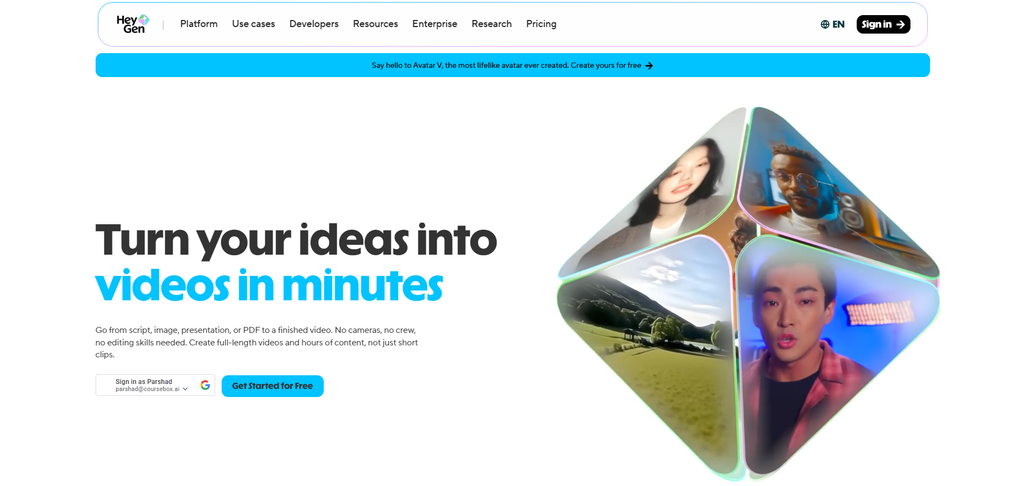
HeyGen is useful when the same presenter-led lesson needs several language versions or a custom digital presenter. Its avatar, voice-cloning and translation tools let a team adapt a source explanation instead of recording every version from scratch. That can suit international onboarding, product introductions and internal announcements.
The plans serve different jobs. Creator supports individual video production, while Business adds collaboration, SSO, interactive video, SCORM export and LMS integrations. Translation still needs a reviewer who knows the language and subject: names, technical terms and changes to a procedure can survive in the voice while becoming inaccurate in the translated script.
My review: My comparison centred on the editable source. For recurring training, I want the team to correct a line and keep control over the translated version, rather than treat each exported video as the master. The human approval step belongs in the workflow before publishing, especially for safety or compliance instructions.
My verdict: Choose HeyGen for avatar-led production and localisation. If the requirement is a tracked interactive lesson, price Business explicitly; the individual creator price does not cover the same delivery workflow.
Pricing: Creator is US$29/month, Pro US$49/month and Business US$149/month, with additional Business seats at US$20/month. Generation uses credits; resolution, video duration and collaboration limits vary by plan.
3. Colossyan
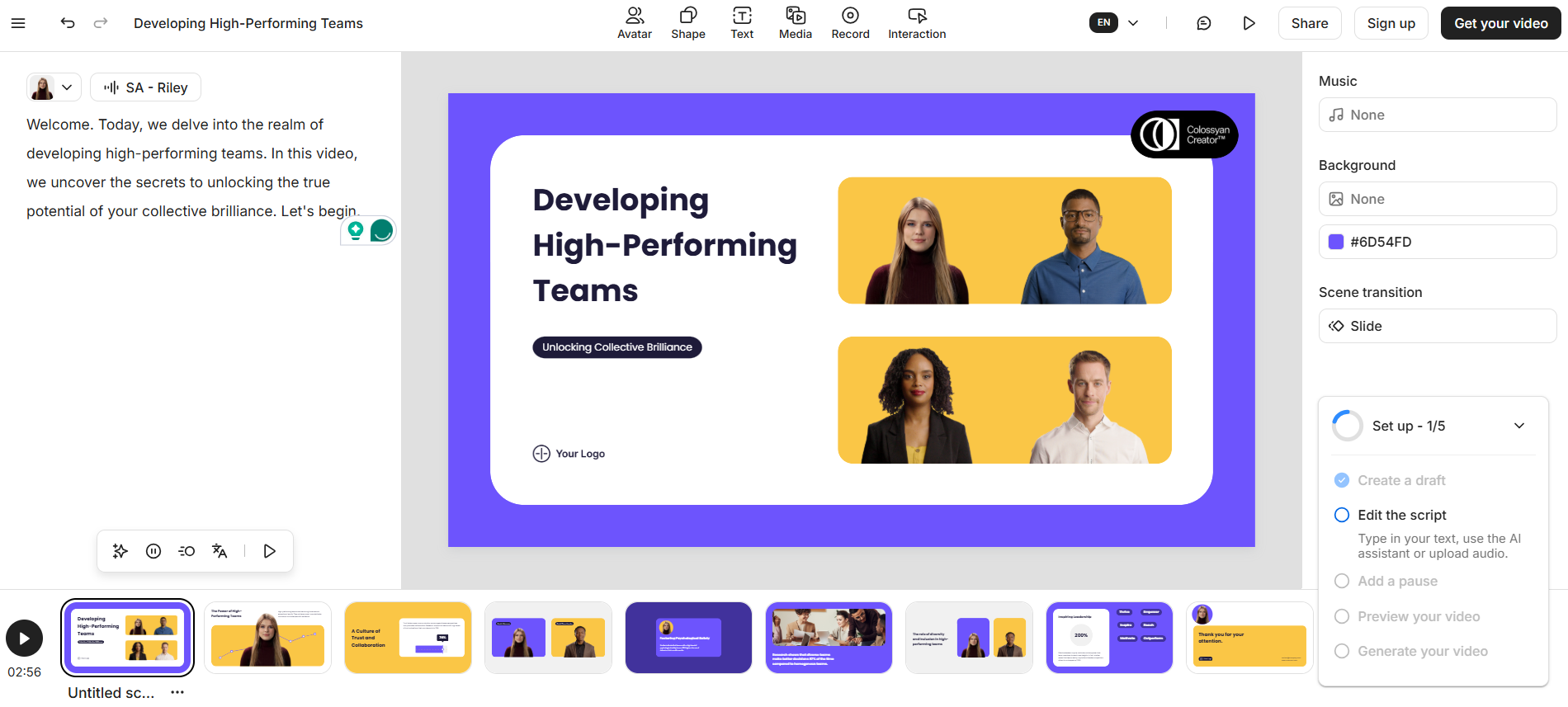
Colossyan brings avatar video closer to an interactive workplace lesson. Alongside a scripted presenter, it offers quizzes and branching so learners can respond to a situation rather than only watch an explanation. That is useful for onboarding decisions, policy scenarios and customer conversations.
The delivery method deserves attention before production starts. Professional currently includes five streaming SCORM exports per month; Enterprise includes unlimited SCORM exports. A streaming package and a permanently self-contained file have different dependencies. Ask how updates, learner results and access behave after a subscription change, then try the package in the actual LMS you will use.
My practical check: In my review, the useful question was what the learner does after hearing the explanation. A choice with feedback can reveal whether someone understood the procedure. I would keep branches tied to realistic decisions and avoid adding interactions that simply ask learners to repeat the preceding sentence.
My verdict: Shortlist Colossyan for presenter-led lessons with decisions inside the video. For a full course with broader assessment and learner assistance, compare the surrounding LMS workflow as well as the video editor.
Pricing: A free Starter plan is available. Professional is US$59/month billed annually, with extra editor seats at US$30/month and generation allowances by model. Enterprise is quoted; confirm interactive features and SCORM volume in the chosen plan.
4. Guidde
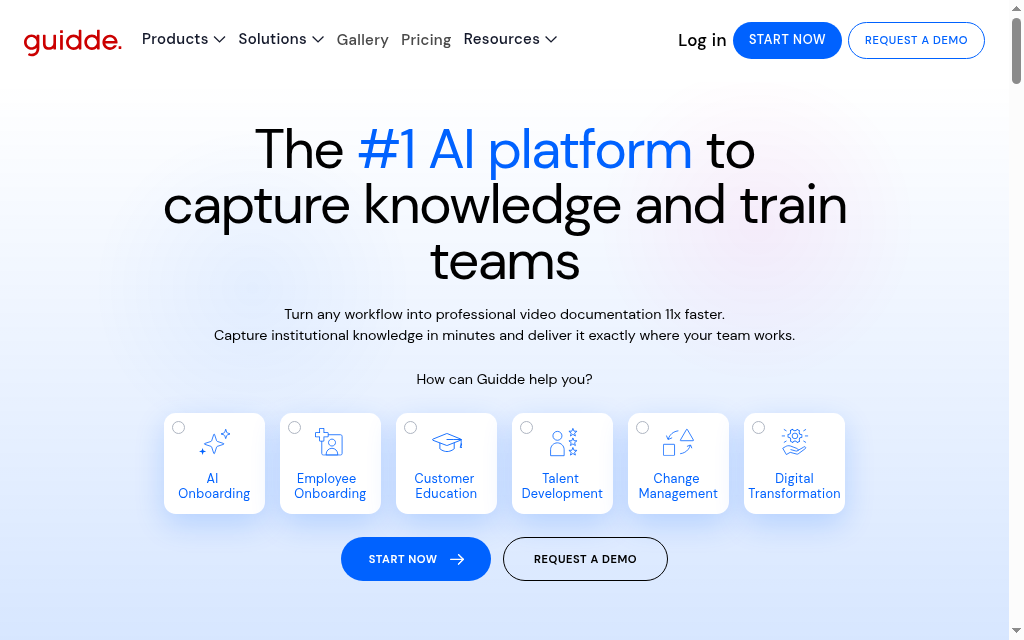
Guidde starts with the real software process. Capture a workflow, then turn the steps into a narrated guide with captions and supporting text. It is useful for teaching colleagues how to submit an expense, update a CRM record or use an internal system because learners see the interface they will encounter.
The capture source changes by plan. Pro works with web applications; Business adds desktop capture and AI text-to-voice. Paid plans support exports, while Enterprise includes SCORM and additional review, identity and contextual-delivery controls. A guide shared as a link is convenient for performance support, but it is a different requirement from an assigned lesson that records completion in your LMS.
My checklist: The detail I would check first is sensitive information in the recording. Use a demo account and review names, customer details and notifications before sharing. When the application changes, update the affected steps rather than leave a polished guide showing an obsolete button or menu.
My verdict: Choose Guidde when the training is a software procedure. A generated presenter or synthetic scene adds little if the learner mainly needs to see the correct sequence of clicks.
Pricing: Pro is US$29 per creator/month, or US$19 with annual billing. Business is US$59 monthly or US$39 annually per creator. Enterprise is quoted. Viewers do not consume creator seats; SCORM requires the enterprise offering.
5. invideo
invideo suits a training team that needs to assemble footage, narration and generated scenes into an edited video. Its current platform combines generative models with a timeline and collaborative editing, giving an author more control over the finished sequence than accepting the first output from a prompt.
That is useful for an introductory explanation, a visual example or an existing-footage edit. It needs a different review standard from a screen recording. Generated equipment, hand movements or workplace scenes can look plausible while showing an incorrect procedure. Use approved footage for the steps people must copy, and review music, media rights and brand assets before distribution.
My take: In my comparison, the editing step was the reason to consider it. I would start with the approved explanation and decide which shots clarify each point. Letting a prompt choose the whole lesson risks attractive scenes that do not teach the task, while a timeline makes it easier to replace those scenes.
My verdict: Choose invideo for flexible video assembly and generated supporting visuals. If the requirement includes learner assignments, assessments and completion records, budget a training platform alongside it.
Pricing: The pricing page currently displays a promotional annual Starter offer of €10 per seat/month, with 400 credits per seat/month, against a regular displayed €20 price. Check the currency, renewal price and model credit consumption at checkout.
6. Coursebox
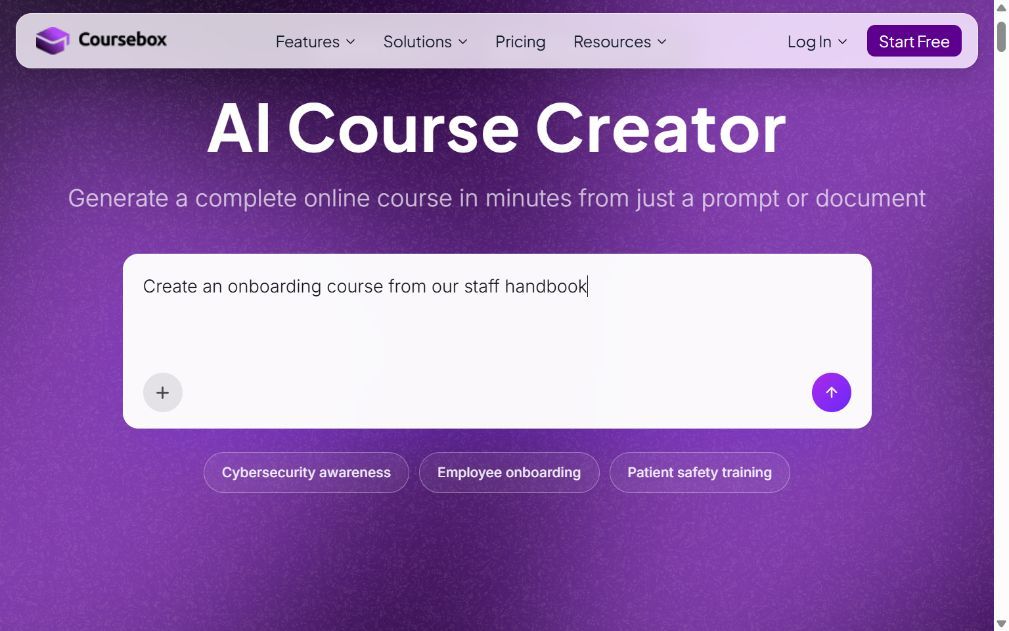
Coursebox combines an AI training video generator with course creation and LMS delivery. You can create a presenter video from a script, choose from more than 500 avatars and over 100 languages, and place the result beside explanations, quizzes and assessments. A custom avatar can also be created from a photo.
That combination is useful when the finished job is employee training rather than a video alone. Documents and existing material can supply the course, an AI tutor can answer learner questions, and the LMS can deliver branded learning with progress and assessment reports. Video generation is available as its own workflow too. The practical restriction is the plan allowance: video minutes and other AI resources are limited, even when learner numbers are unlimited.
My review: What I would review first is the connection between the video and the exercise. A presenter can explain a process, then a scenario or assessment checks whether the learner can apply it. That keeps the visual production tied to a learning outcome and gives the learner somewhere to get help after watching.
My verdict: Choose Coursebox when creation, video, assessment and delivery need to work together. A specialist video editor may still be useful for a complex filmed production or a heavily edited animation.
Pricing: A limited free plan is available. Creator is AU$500/year with 60 standard video minutes per year; Pro+LMS is AU$4,200/year with 900 standard video minutes per year. Check branding, admin seats, export options and AI allowances for the required plan.
7. Pictory
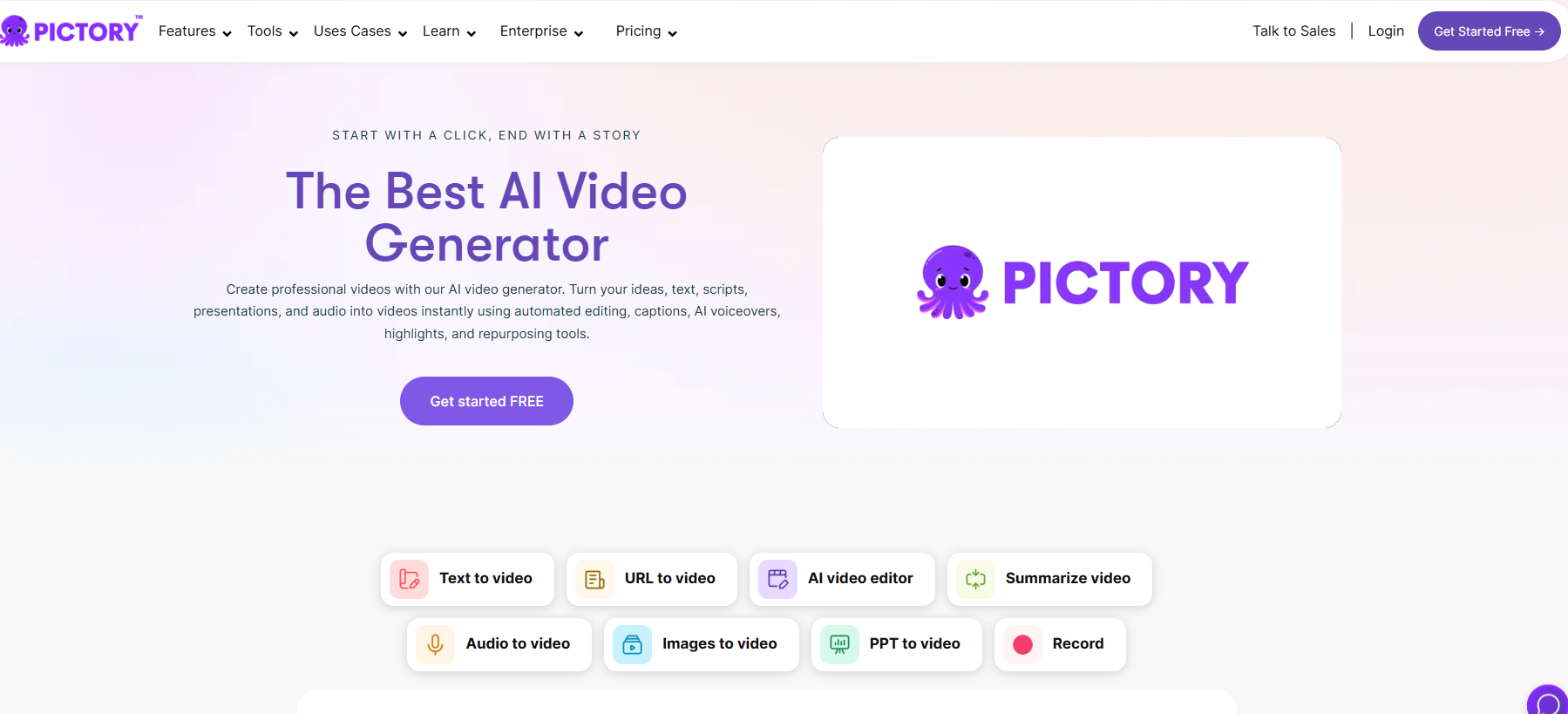
Pictory is useful for turning existing written or recorded material into shorter videos. A team can work from a script, article or long recording, then refine the selection of scenes, captions and narration. It is a practical option when a webinar or handbook contains useful explanations that need a more focused format.
Its current offering also includes AI-generated media and avatars, so it should not be treated as a stock-footage-only tool. The subscription separates video processing, voice allowances, storage and AI credits. Those limits can affect the choice between repurposing a recording and generating new scenes, even if both produce a short finished clip.
My practical check: My review priority is the context around an extracted segment. A short clip can omit the exception that followed the main instruction or turn a conditional recommendation into a rule. I would keep the source recording, check the edited explanation against it and add any qualification needed for the lesson to stand alone.
My verdict: Choose Pictory for content repurposing and concise explanations. For a software procedure, use the actual interface; for assessed training, connect the finished video to a course and an activity.
Pricing: The current Starter offer is US$25/month billed annually, for one user, with 2,400 video minutes and 1,200 AI credits per year. Voice, storage and generation limits differ by tier; verify the renewal total before buying.
8. Vyond
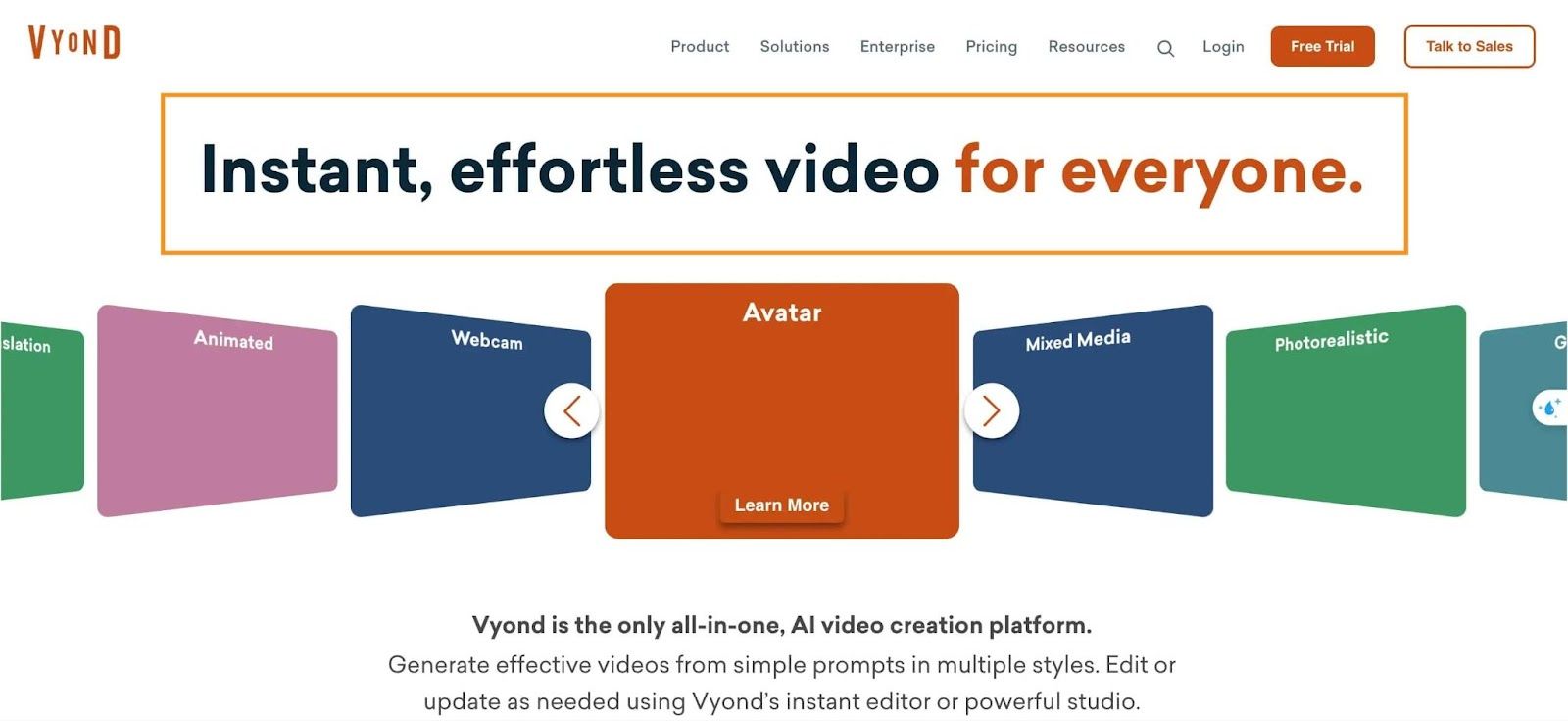
Vyond suits training that benefits from animated characters and situations, such as a difficult customer conversation or a workplace decision. Animation lets an author depict the scenario without filming employees or exposing a real incident. Characters, scenes and dialogue can be changed as the procedure evolves.
The current platform is broader than animation: it also offers AI avatars, screen and webcam recording, and text or document-based video creation. That gives a team several ways to present the same topic. The choice should follow the lesson: an animated conversation can show behaviour, while a real screen recording is clearer when teaching an application.
My checklist: What stood out in my comparison was the ability to show the consequence of a decision. I would use a short scene with a recognisable problem and then ask the learner what to do next. A long animated story can consume production time without making the decision any clearer.
My verdict: Choose Vyond for scenario-led training and a repeatable visual style. For a video embedded in an assessed course, confirm the delivery and tracking workflow separately from the animation subscription.
Pricing: Starter is US$99/month or US$699/year. Professional is US$199/month on monthly billing. Plans include AI credit allowances and differ in collaboration and enterprise controls; revisions and generated assets need to fit that allowance.
How to turn a video into useful training
Start with the action the learner should take after watching. The format can then follow the job, rather than the avatar or visual style available in the editor.
| Training task | Useful format | Check after watching |
|---|---|---|
| Explain a new policy | Presenter with examples | Choose the correct action in a scenario |
| Teach a software process | Actual screen capture | Complete the task in a safe practice environment |
| Handle a difficult conversation | Animated or acted scenario | Select a response and explain the reason |
| Update a long presentation | Edited clips from the source | Answer a question that applies the explanation |
In Thinkific’s 2026 survey of 1,039 learning professionals, 44% used AI to generate educational content. The useful production step is still to have a subject expert approve the explanation and exercise before employees receive it.
Store the approved script, media permissions and editable project together. A policy change should lead to an identifiable revision, with old versions removed from the places learners access them.
What to check before buying
Wistia’s 2026 report found that 62% of surveyed teams were using AI in video workflows or planned to start soon. Its research surveyed nearly 1,000 marketers, so this is video-production context. It gives training teams a useful reason to plan review and maintenance alongside generation.
- Create one representative lesson using approved source material.
- Correct a line, a technical term and a scene to check the revision workflow.
- Test captions and the required language version with a subject reviewer.
- Publish through the intended LMS or delivery route and inspect the learner result.
Which AI training video tool should you choose?
Shortlist by the training task, then price the plan that produces the required output. The quiz covers four presenter and integrated-training choices; the table above includes screen capture, animation and editing options too.
Frequently Asked Questions
Yes. These tools can create presenter videos, assemble footage, capture software processes or animate scenarios. Review the script, visuals and any translated version against the procedure employees need to follow.
Yes, depending on the tool and plan. Colossyan offers SCORM, HeyGen Business includes SCORM and LMS integrations, and other vendors have plan-specific options. Coursebox combines video with course delivery and reporting. Test the required completion and assessment record in your LMS.
Guidde is a useful choice for capturing the actual interface. Use a demo account, remove sensitive information and keep the guide current when the application changes.
Several tools have free plans or trials, including Coursebox, Synthesia, HeyGen, Colossyan and Guidde. Export rights, watermarks, minutes and interactive features vary, so test the finished output you need.
Toni Arrebola
Toni joined Coursebox in 2024 as a software engineer and later moved into a CTO position with us after having a quick positive impact. He has 25 years of experience building SaaS platforms and managing high performance development teams. He transitioned from UI/UX design into product-minded software engineering. He previously founded and built a SaaS platform from scratch, scaling the business to 1,000+ paying customers. Toni is located in our Perth, Western Australia office and is originally from Spain. He is responsible for delivering an incredible user experience within the product, something he cares deeply about.

