

eLearning Storyboard Template (Free Word File and Example)
Free eLearning storyboard template in Word, with a filled 15-minute example module, an SME review checklist and steps for writing every screen.

An eLearning storyboard is a screen-by-screen plan of an online module, written before it is built. For each screen it gives the exact text, narration, visuals, interactions and feedback, so a subject expert can approve the content and a developer can build it without guessing.
- Label every screen as lesson, practice or assessment and add up the minutes, because little practice on paper means little practice once built.
- Write the feedback for every wrong answer into the storyboard itself, so learners are told why an answer is wrong, not only that it is.
- Put accessibility into the storyboard from the start: alt text for meaningful images, captions for speech in video and transcripts for audio-only narration, and a way to complete every interaction with a keyboard.
- Skip the storyboard when one person designs and builds a short module or a prototype is faster; keep it when an expert must sign off.

Go from storyboard to an interactive course in minutes
An eLearning storyboard is the document that describes every screen of a module before anyone builds it: what learners read, hear, see and do, and what happens after each answer. Below is a complete sample storyboard, three more sample screens from other kinds of course, and a free Word storyboard template with a review checklist for your subject matter expert.
I'm Travis, cofounder of Coursebox. Before that I was a learning designer and project manager on three edX courses at the University of Adelaide, and I still design courses with customers on calls. Coursebox makes instructional design software that builds courses from documents like this one, so I have a commercial interest in how storyboards get used.
A blank Word storyboard with a cover sheet and six blank screens, two to a page, plus the near-miss module filled in screen by screen and three more sample screens.
For a fixed-layout copy to read or print, download the PDF version.
Here is the hypothetical sample. It is a 15-minute self-paced module called "Reporting a near miss" for new staff at a distribution centre, taken on a shared tablet at the team leader's desk.
A near miss is an event that could have hurt someone but didn't. By the end, learners can spot one, take the three steps the site requires and log it in the site's incident app.
| Screen | Type | Minutes | What learners see and do | Feedback |
|---|---|---|---|---|
| M1-S01 Why we report near misses | Lesson | 1 | Read why the site wants near misses reported, under a photo of a dropped pallet in a walkway | None |
| M1-S02 What counts as a near miss | Lesson | 1.5 | Tap three photos from the site: a box falling into an empty aisle, a forklift reversing without a horn, a spill by a dock door | None |
| M1-S03 Spot the near miss | Practice | 2.5 | Pick which of four events are near misses | Explains that the one where someone was hurt is an incident, not a near miss |
| M1-S04 Three steps when it happens | Lesson | 1.5 | Read the steps: make the area safe if you can do it without risk, tell your team leader, log it before the shift ends | None |
| M1-S05 Logging it: a walkthrough | Lesson | 1.5 | Watch a 60-second recording of a near miss being logged in the incident app | None |
| M1-S06 Log one yourself | Practice | 3 | Fill in a practice copy of the app form for a box that fell in aisle 3 | Names the missing detail and why it is needed |
| M1-S07 Scenario: the pallet in aisle 6 | Practice | 2.5 | Choose what to do after a pallet slides off a forklift near a picker; two wrong choices loop back | Says why each wrong choice falls short |
| M1-S08 Final check | Assessment | 1.5 | Answer three questions, one per objective, each with three options | Names the screen to revisit for each wrong answer |
The minutes add to 15: 5.5 of lesson, 8 of practice and 1.5 of assessment. Every objective gets at least one practice screen before the final check. The Word file supplies the eight-screen plan, including feedback, alt text and sample expert comments. Its asset filenames illustrate what to specify; the photos, videos and incident-app simulation are not bundled with the template.
What is an eLearning storyboard?
An eLearning storyboard is a written plan of every screen in an online module, in the order learners will meet them. Connie Malamed calls it "the central document of eLearning development": it specifies what the visuals show, what the narrator says and which interactions get built.
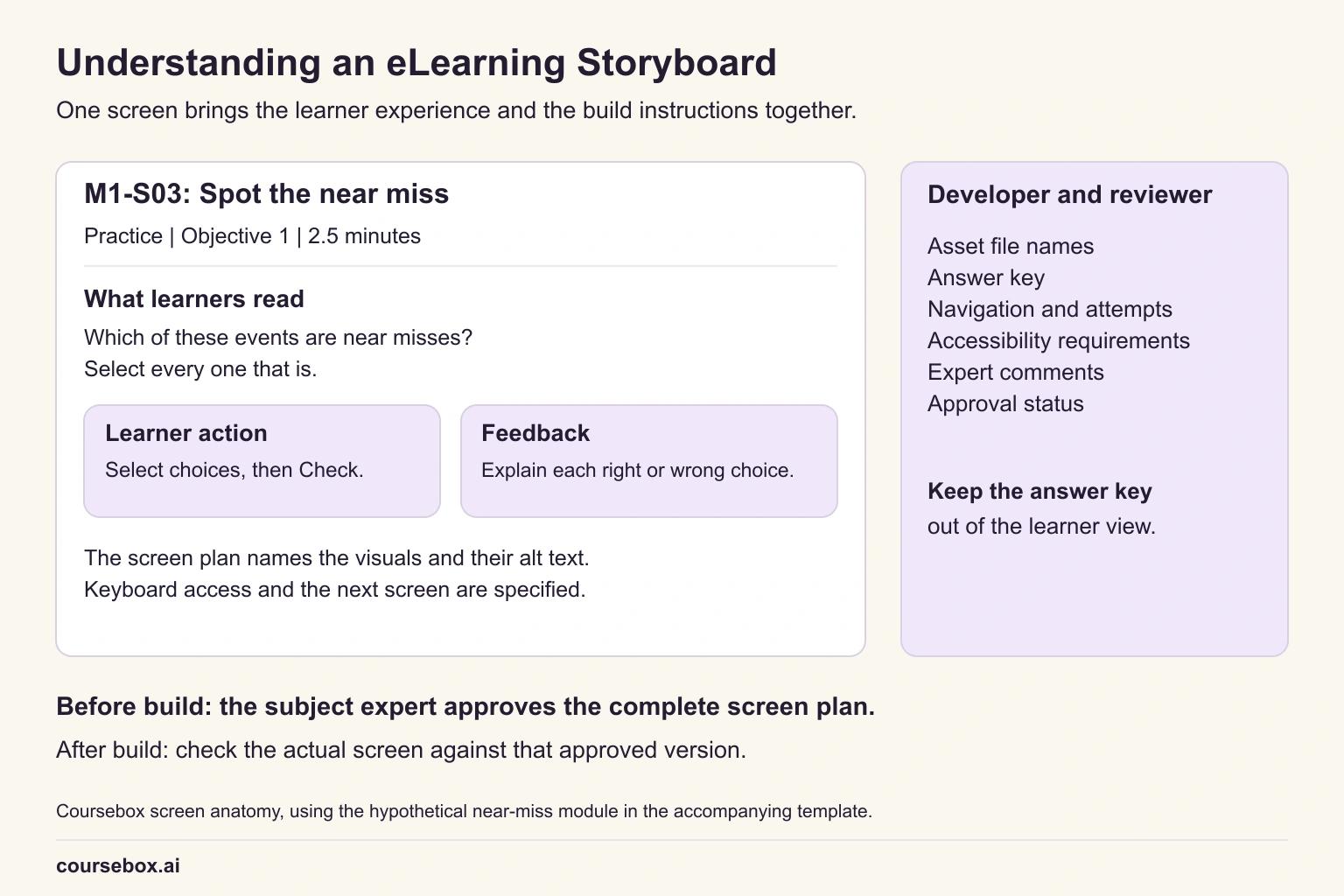
View the full-size elearning storyboard diagram
It sits between the course outline and the build. In the ADDIE model (analysis, design, development, implementation and evaluation), you write it at the end of design and the developer works from it in development.
Every course I design comes down to three kinds of page: a lesson, a practice activity and an assessment. Most courses have far too much of the first. A storyboard is the cheapest place to see that, because the imbalance shows up in a list of screens before anyone has spent a day building them.
Text storyboards and visual storyboards
Malamed describes two main kinds. A text storyboard is a document or table. A visual storyboard adds a sketch or mock-up of each screen.
| Kind | What each screen looks like | Best for | Watch out for |
|---|---|---|---|
| Text storyboard | A table of fields: on-screen text, narration, visuals, interaction, feedback | Content-heavy modules, compliance training and anything an expert must check word by word | Reviewers struggle to picture an interaction from a description alone |
| Visual storyboard | A sketch or slide mock-up of the screen, with the same fields beside it | Scenarios, animations and modules where layout carries meaning | Reviewers comment on colours and fonts instead of the content |
The template on this page is a text storyboard. Where a screen depends on layout, paste a rough sketch into the visuals field.
Storyboard, outline, script or prototype?
These four documents get confused, and a project often needs two of them.
| Document | What it answers | Level of detail | Who signs it off |
|---|---|---|---|
| Course outline | What the course covers and in what order | Modules and lessons | The sponsor or training manager |
| Storyboard | What every screen says and does | Every word, image, choice and piece of feedback | The subject matter expert |
| Script | What the narrator or presenter says | Spoken words only | The subject matter expert, then the voice talent |
| Prototype | How it will feel to use | A few working screens | Learners and the project team |
If you don't have an outline yet, start with a course outline template and come back once the modules are agreed.
Why storyboard a course before you build it
A storyboard gets the content approved while changes are still cheap. Rewriting a sentence in a table takes a minute; rebuilding a branching scenario because the expert changed the procedure takes an afternoon.
It also gives the people around the project one document to work from:
- The subject matter expert (SME), the person who knows the content, checks every word in one place instead of clicking through a half-built course.
- The developer builds from exact text, file names and branching, rather than guessing what "add an interaction here" means.
- The reviewer or compliance owner can see what learners will be told, and sign the version that gets built.
Research on real projects backs up the review part. Kadioglu, Tacgin and Sahin described a team building an eLearning programme with a four-stage review.
The subject expert prepared each storyboard, a consultant evaluated it, and the expert revised it. Only then did it go to the instructional designers. They also wrote that the storyboard "must be clear and could be read by the educational technologists".

Case study: Blended in-service training for health workers in Ethiopia
Ethiopia's Ministry of Health added blended learning to its national professional development system to close persistent gaps in the access, cost and quality of in-service training. With JSI Research and Training Institute, it built self-paced eLearning modules for primary health care workers, paired with structured face-to-face sessions. The topics included antenatal care and family planning.
- What they did: each course went through content analysis, a design matrix, a storyboard, building in an authoring tool, media production and matching face-to-face materials. The team also wrote a national design and development guide so later courses follow the same route.
- Evidence and result: in October 2025, observed antenatal care consultations in sites with trained staff scored 77.1% on the quality-of-care provision measure, against 66.7% in comparison sites (90 and 57 consultations). Training cost US$262.81 per trainee, against an estimated US$360.10 for face-to-face training, the team reported in BMJ Public Health.
- Limitation: the study measured after training only, with unequal groups and no baseline, so it cannot prove cause. The storyboard was one step in a whole programme; the result belongs to the programme.
- Lesson: a written storyboard step made the process repeatable enough to put in a national guide that other course teams can follow.
What goes in an eLearning storyboard template
This template adds four fields that make the plan easier to check: screen type, feedback, accessibility and minutes.
| Field | What to write | Example from the near-miss module |
|---|---|---|
| Screen ID and title | Module and screen number, then a short title | M1-S03 Spot the near miss |
| Screen type | Lesson, practice or assessment | Practice |
| Objective served | The number of the objective on the cover sheet | 1 |
| Minutes | Your estimate for a typical learner | 2.5 |
| On-screen text | The exact words learners read | Which of these four events are near misses? Select every one that is. |
| Narration | The exact voiceover, or None | None, because the tablet sits in a noisy area |
| Visuals and media | What learners see, with each file name | Four photos with one-line captions, nm-03a to nm-03d.jpg |
| Interaction and navigation | What learners do and where each choice leads | Multiple select, then Check; two attempts; then on to M1-S04 |
| Feedback | What learners see after each right and wrong answer | C is an injury, not a near miss. It is reported as an incident. |
| Accessibility | Alt text, captions and a keyboard route | Checkboxes instead of drag and drop, and alt text for each photo, such as: A forklift reversing with a picker standing a step behind it |
| Developer notes | Anything the builder needs that learners never see | Answer key: A, B and D |
| SME comments and status | The expert's comments, and draft, changes needed or approved | Approved |
A cover sheet sits in front of the screens. It holds the audience, the delivery setting, the numbered objectives, the target length, the source document, the version and who signs off. Agree the cover before you write a single screen, because every screen points back to an objective on it.
The developer can't write alt text for an image whose purpose only you know, so write it in the storyboard. The W3C's Web Content Accessibility Guidelines (WCAG 2.2) require a text alternative for meaningful images, captions for prerecorded audio in video and keyboard access to every function. Drag-and-drop is the usual problem: give it a select or checkbox alternative.
How to write a storyboard, step by step
These steps carry the near-miss module from an agreed outline to a signed storyboard. If you haven't yet broken the job into tasks, an instructional analysis comes first; the storyboard depends on knowing what people must actually do.
- Start from the approved outline and the source document. For the near-miss module, that was one lesson in the warehouse safety outline and version 3 of the site's near-miss procedure.
- Fill in the cover sheet. Write the audience, where they will take the module, three numbered objectives and the 15-minute target. Get the safety lead to agree the cover before you go further.
- List the screens with an ID, title, type and minutes. Eight screens came out of the near-miss procedure. Ask of each objective: where do learners practise this, and where do they show they can do it?
- Check the balance and the total. Add the minutes for each type, and check that every objective has a practice screen and an assessment screen. If a skill objective has no supported practice, add it and adjust the screen plan. There is no fixed lesson-to-practice ratio. The near-miss module ends up with 8 minutes of practice out of 15.
- Write every screen in full. Use the final on-screen text, not a summary of it. For a scenario, write each choice and the screen it leads to; in the aisle 6 scenario, two wrong choices loop back with their own feedback.
- Add feedback, accessibility and developer notes. Each wrong answer gets one line saying why it is wrong, and each meaningful photo gets its alt text in full, not a note to add it later. Each interaction gets a keyboard route. In the final check, write every question, every option and the answer key.
- Send it for review and sign-off. In the hypothetical module, the safety lead comments in each screen's last row and sets its status. Revise, raise the version number and repeat until every screen is approved.
In a branching scenario, the feedback is the teaching. Draft what learners see after each wrong choice before you polish the situation text, and check that every choice leads to a screen that exists.
If you are designing a scenario from scratch, our guide to scenario-based learning covers how to choose the situation and the choices.
Free eLearning storyboard template (Word)
The blank storyboard, the filled near-miss module and three more sample screens, in one Word file.
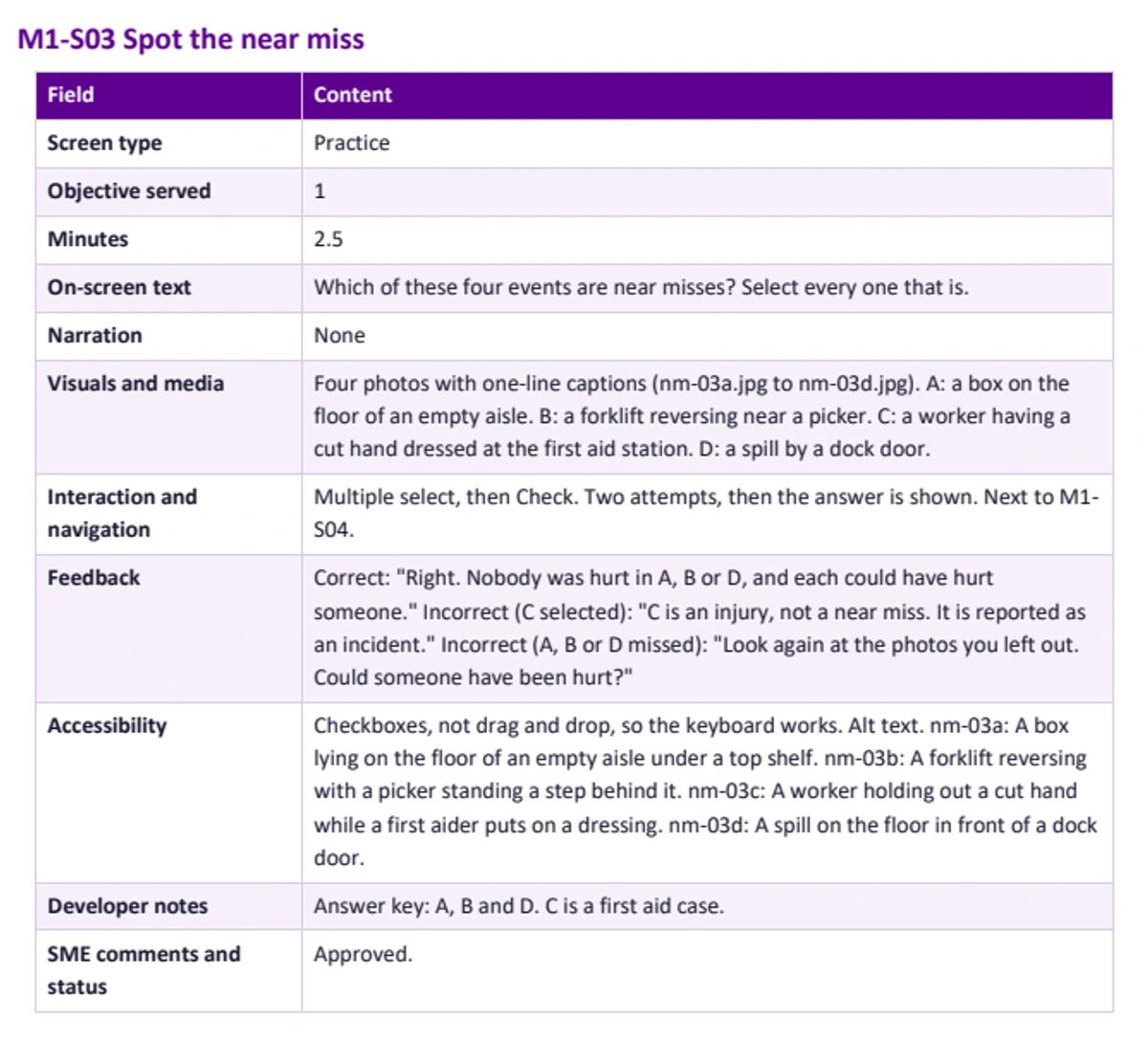
The completed practice screen in the Word file. Feedback explains the wrong choices, the accessibility row supplies image descriptions and keyboard controls, and the answer key stays in developer notes.
The Word file has five parts:
- How to use it, in six short steps, and a guide to each field.
- A blank cover sheet for the audience, objectives, target length, version and sign-off.
- Six blank screens, two to a page. Copy a screen table for each extra screen.
- The near-miss module filled in, with its cover sheet, a screen list with totals and every field of all eight screens.
- Three more sample screens from other kinds of course.
The template is our adaptation of common practice, not a standard. Rename or delete fields your team doesn't use; keep screen type, feedback and minutes, because those are the checks a reviewer can make in a few minutes.
For instructor-led training, rename two fields: narration becomes "Facilitator says" and visuals becomes "Slide or prop". Each table then describes one segment of the session rather than one screen.
Your subject matter expert gets a separate checklist to review the storyboard with.
A two-page checklist for the subject matter expert: twelve checks on accuracy, practice, feedback, timing and accessibility, each answered yes, no or not applicable, plus a review log for three rounds and a sign-off box.
Sample storyboard screens for other courses
These three invented screen plans take their topics from published projects that used storyboards. They are our examples, not the projects’ actual screens. Some fields are deliberately marked for expert completion; all three are in the Word file.
A refresher for primary health workers
For a self-paced refresher on antenatal care, the kind of in-service course the Ethiopian programme built.
| Field | Content |
|---|---|
| Screen ID and title | M2-S04 Asking about danger signs |
| Screen type | Practice |
| Minutes | 3 |
| On-screen text | A woman at 30 weeks says she has had headaches for two days. What do you ask next? Choose two questions. |
| Interaction and navigation | Choose two of five questions, then Check. Next to M2-S05. |
| Feedback | To be written by the SME from the national guideline |
| Developer notes | Source: national antenatal care guideline, section and page number to be added by the SME |
| SME comments and status | Draft |
Point every clinical screen at the page of the guideline it came from, and leave the clinical feedback to the subject expert, who writes it from the national guideline. The SME then checks the screen against the source, not against memory, and the next update knows which screens a guideline change affects.
Online training for programme facilitators
For training facilitators to run a family skills programme, moved online from two days in person.
| Field | Content |
|---|---|
| Screen ID and title | M3-S02 Running the hardest exercise |
| Screen type | Lesson |
| Minutes | 4 |
| On-screen text | Watch a trainer run the exercise with a group. Note where they pause and what they say when a parent goes quiet. |
| Narration | Full video script attached as m3-02-script.docx; the SME signs off the script before filming |
| Interaction and navigation | Video, then a click-and-reveal card: What did the trainer say? Next to M3-S03. |
| Accessibility | Captions in every language the course runs in, plus a transcript link |
| SME comments and status | Changes needed: film the parent going quiet, not the trainer describing it |
Get the video script approved in the storyboard before anyone films. Reshooting costs far more than rewriting a row.
The United Nations Office on Drugs and Crime took this route for its Strong Families facilitator course. The course developer built a storyboard from the training materials, then collected feedback and updated it before moving on. The course now runs in 10 languages.
A classroom session turned into eLearning
For health and social care staff learning to support families when a parent is dying with cancer, adapted from a face-to-face workshop.
| Field | Content |
|---|---|
| Screen ID and title | M1-S06 Opening the conversation |
| Screen type | Practice |
| Minutes | 3 |
| On-screen text | A mother with advanced cancer asks you, "How do I tell the children?" Write the first thing you would say. |
| Interaction and navigation | Free-text box, then Show a model answer. Next to M1-S07. |
| Feedback | A model answer from the SME, and two questions to compare with your own: did you ask what the children already know, and did you offer to help plan the conversation? |
| Developer notes | In the classroom version this was a slide the trainer talked over. Do not store the free text. |
A slide that worked because a trainer talked over it needs its own words and an activity once nobody is in the room. A team from University College Dublin and Ulster University mapped their face-to-face content onto slides using a storyboard approach and wrote that it "could not be merely replicated" online. If you are starting from a slide deck, our guide to converting PowerPoint to eLearning covers the rest of that job.
Getting the storyboard signed off
Many subject matter experts find storyboards hard to review. In a 2012 study, Yusoff and Salim found that experts struggled with the templates, with interactive components and with the review process itself.
Three habits make the review easier:
- Comments go in the storyboard. Each screen has an "SME comments and status" row. Feedback then sits next to the words it is about, not in a long email.
- Every screen gets a status. Draft, changes needed or approved. A module is ready to build when every screen says approved.
- Every round gets a version number. The near-miss storyboard reached version 1.2 after two rounds. The safety lead swapped one example for a hazard the site sees more often, and asked for a photo step in the practice form.
The review checklist gives the SME twelve checks, each answered yes, no or not applicable, plus a log for three rounds and a sign-off box. A signed storyboard approves the plan, not the course. Check the built course against it, screen by screen, before learners see it.
Handing the storyboard to a developer or an AI course builder
In the 180 days to 16 November 2026, 134 people mentioned a storyboard in their first request to the Coursebox AI course builder. Some of them wanted the builder to work from a storyboard they already had.
A developer needs three things the storyboard already holds: the exact text, the file name of every asset and where each choice leads. Send the asset files with it, named as the storyboard names them.
Some people now hand a signed storyboard to an AI course builder instead.
That is about 1 in 6. Another 13 of the 40 wanted a storyboard for a video or an animation. The people who supplied one treated the signed document as the specification and wanted the build to follow it screen by screen.
A buyer who spoke with our team described the same habit. She pulled the objectives from a clinical protocol into a storyboard and wrote the type of activity on each screen. Then she gave the storyboard to the builder.
If you do the same, say so plainly in your first message:
Paste this into an AI course builder with your signed storyboard attached.
Build the module [MODULE TITLE] from the attached storyboard, version [VERSION]. The storyboard is the approved content: use its on-screen text, questions and feedback exactly as written, and do not add new content. Build one course page for each screen, in the order of the screen IDs. Where a screen is marked practice or assessment, build the interaction described and use the feedback text given for each answer. Where a scenario choice names a next screen, link it to that screen. Use the alt text in the accessibility row for each image. List any screen you could not build as described.
- [MODULE TITLE]
- : The module name from your cover sheet (for example, Reporting a near miss)
- [VERSION]
- : The approved version number (for example, 1.2)
- Every screen ID in the storyboard appears in the built course, in order.
- On-screen text, questions and feedback match the storyboard word for word.
- Each scenario choice leads where the storyboard says it does.
- Alt text and captions from the storyboard are present.
An AI builder will not reproduce a document exactly, so treat the result as a first build. Compare it with the signed storyboard screen by screen, using the four checks listed with the instruction, before anyone else sees it. If you have no storyboard yet, you can turn an existing document into a course and review the result instead.
Building the near-miss module from the storyboard in Coursebox
I gave the builder the near-miss storyboard as a Word file, with the instruction from the card filled in and no photos or video attached. Before it planned anything, it flagged three gaps: media files I had not attached, no questions or options for the final check, and missing alt text. It said it would not invent them.
It was right about my own example: the final check said "three questions" and never wrote them, and the accessibility rows asked for alt text without giving it. Both are now written into the template.
It built one page per screen, in screen-ID order, including the two feedback screens for the scenario. The on-screen text and the feedback came through word for word. The interactions did not.
The multi-select on M1-S03 and the aisle 6 scenario on M1-S07 came out as static panels. The feedback sat beside each choice, so a learner could read the answers before choosing. Its closing report called the result an incomplete draft for author review, and listed every screen it could not build as described.
I then added a Scenario block to M1-S07 by hand and pasted in the approved situation, choices and feedback, asking it to use that exact wording. It wrote its own four-turn scenario instead.
So treat the AI build as a first build. Rebuild the interactions by hand, and paste the signed wording back wherever the builder changed it.
Storyboard tools: Word, PowerPoint or straight into the builder
Pick a tool your SME can read and comment in without training.
| Tool | Good for | Weak at |
|---|---|---|
| Word or Google Docs | Text storyboards, tracked changes and comments from an SME | Showing layout and how an interaction feels |
| PowerPoint or Google Slides | Visual storyboards, one slide per screen with notes for narration | Long text and reviewing many fields at once |
| A spreadsheet | Long modules, sorting screens and adding up minutes | Reading as a whole; reviewers find it cramped |
| Straight into the authoring tool | Small projects where the designer also builds | Getting SME sign-off before the build |
Word suits most workplace projects: most reviewers already have it, and comments and tracked changes work. For a long module, keep the screen list and minutes in a spreadsheet and the full screens in Word.
When a prototype beats a storyboard
A storyboard is not always the right tool. Allen Interactions built its Successive Approximation Model (SAM) around early prototypes. Its view is blunt: "A usable prototype is better than any description, specification, or storyboard."
Malamed herself says to use one only when it will help the project rather than hinder it. Skip the formal storyboard or keep it light when:
- One person designs and builds a short module, with no SME sign-off needed. A list of screens and their types is enough.
- The idea is an interaction, such as a simulation or a game, and a working screen will answer the questions faster than a description.
- The content is changing weekly. Build a rough version and test it, then document the stable parts.
Keep it when an expert or a regulator must approve the exact words before the build, when several people build the module, or when the module will be translated. Our guide to rapid prototyping covers how to build and test that first rough version.
Start with the screen list
A storyboard pays for the time it takes when someone has to approve the content before it is built, or when someone other than you will build it. For a short module you build alone, a screen list is often enough.
Either way, write the screen list first: an ID, a title, a type and the minutes for each screen. Add up the lesson, practice and assessment time before you write a word of on-screen text.
Then fill in the screens, put the feedback and alt text in as you go, and send the storyboard to your SME with the review checklist. When every screen is approved, hand it to your developer or to an AI course builder, and check the result against the signed version.
Frequently Asked Questions
Yes. The template on this page is a Word file with a cover sheet, six blank screens and a fully filled example module. Copy a screen table for each extra screen.
Seven steps work in practice, although no standard fixes the number. Start from the approved outline and source document, then fill in the cover sheet with the audience, objectives and target length. List the screens with an ID, title, type and minutes, and check the balance of lesson, practice and assessment against the total time. Write each screen in full, add feedback, accessibility and developer notes, and finally get the subject expert to review and sign it off.
An AI chatbot can draft a storyboard from an outline and a source document, but it cannot know your procedure, your learners or what your expert will approve. Treat the draft as a starting point, check every screen against the source, and get the subject expert's sign-off before anything is built.
A script holds only the words a narrator or presenter will say. A storyboard holds those words plus everything else on each screen: the on-screen text, visuals, interactions, feedback and notes for the developer.
As long as the module needs, with one table per screen. The 15-minute near-miss sample has eight screens of 1 to 3 minutes each. If a screen table runs over a page, the screen is probably trying to do two jobs; split it.
Travis Clapp
Travis Clapp is the original founder and CEO of Coursebox. As an experienced instructional designer, he has lived through the process of building high quality courses. These experiences brought about his idea to upload all your documents and ideas into a virtual box that could convert those magically into a course. Prior to Coursebox, he successfully founded and built a social based LMS. Travis has 15+ years of experience designing courses and EdTech platforms from university MOOCs to enterprise LMS. Travis has built training for reputable companies like Johnson & Johnson, Electrolux, Michael Hill and SA Health. One of his courses reached 20,000+ learners which was a flagship edX course. He is based in the Adelaide, South Australia office and passionately works on customer support, sales and bringing the original product vision to life every day.

