

How to Convert HTML to SCORM (By Hand or in a Course Builder)
Bring an existing HTML course into your LMS. Follow a downloadable example to package the site yourself or add its pages to a course in Coursebox.

You can keep your pages in HTML. Package them as a SCORM ZIP so your LMS knows where the course starts.
- Package the site yourself if you need to keep its own menu and quiz and can maintain the tracking code.
- If the HTML belongs in a larger course, try one page in Coursebox first. Use the downloadable sample if you want a file that's ready to paste.
- Use a Coursebox quiz if your LMS needs a score from the course. The quiz inside my pasted HTML showed 100% on the page, but that result never reached the LMS.
- Open the finished ZIP as a learner. Finish the course, then check what the LMS recorded.

Go from storyboard to an interactive course in minutes
Your HTML course already works in a browser. Now you need it to open in your LMS and tell you who passed. I tried two ways with the same five-page forklift induction. I packaged the original site as a SCORM ZIP, then built a course around those pages in a SCORM authoring tool.
I work at Coursebox, so I used it for the second route. Packaging the site by hand kept its original menu and quiz. In Coursebox, I kept the interactive pages and added a video learners had to watch and a quiz that sent a score to my test player. If you're turning existing web content into a course you can keep editing, that's where I'd start.
What converting HTML to SCORM really means
The pages can stay in HTML. SCORM gives you a way to bundle them for the LMS and tell it where the course starts. To record how a learner did, the course also needs to send a result.
Open a SCORM ZIP and look for imsmanifest.xml. That's the manifest. It tells the LMS which page to open and which files the course uses. Keep it at the top level of the ZIP so the LMS can find it.
If your course has several pages, one page can stay open while the others change. That's the shell. Mine holds the menu, shows each lesson and sends the LMS updates as learners work through the site.
What you need before you start
- Start with a page you already have, or use my fictional warehouse induction below. It's a sample for trying the conversion. Use approved material for real equipment training.
- Have somewhere to open the finished ZIP. Use your own LMS if you have access, or a SCORM test player if you want to see what the package sends.
- If you're packaging the site yourself, have a text editor and a way to make a ZIP.
- If you're using Coursebox, try one page first. Once you can open it and use its activities in learner view, bring in the rest.
- If the training belongs to someone else, ask for the source files and permission to reuse them.
Download the finished sample below if you want to see what goes inside a SCORM 1.2 package. There's a separate download in the Coursebox walkthrough with pages you can paste straight into the editor.
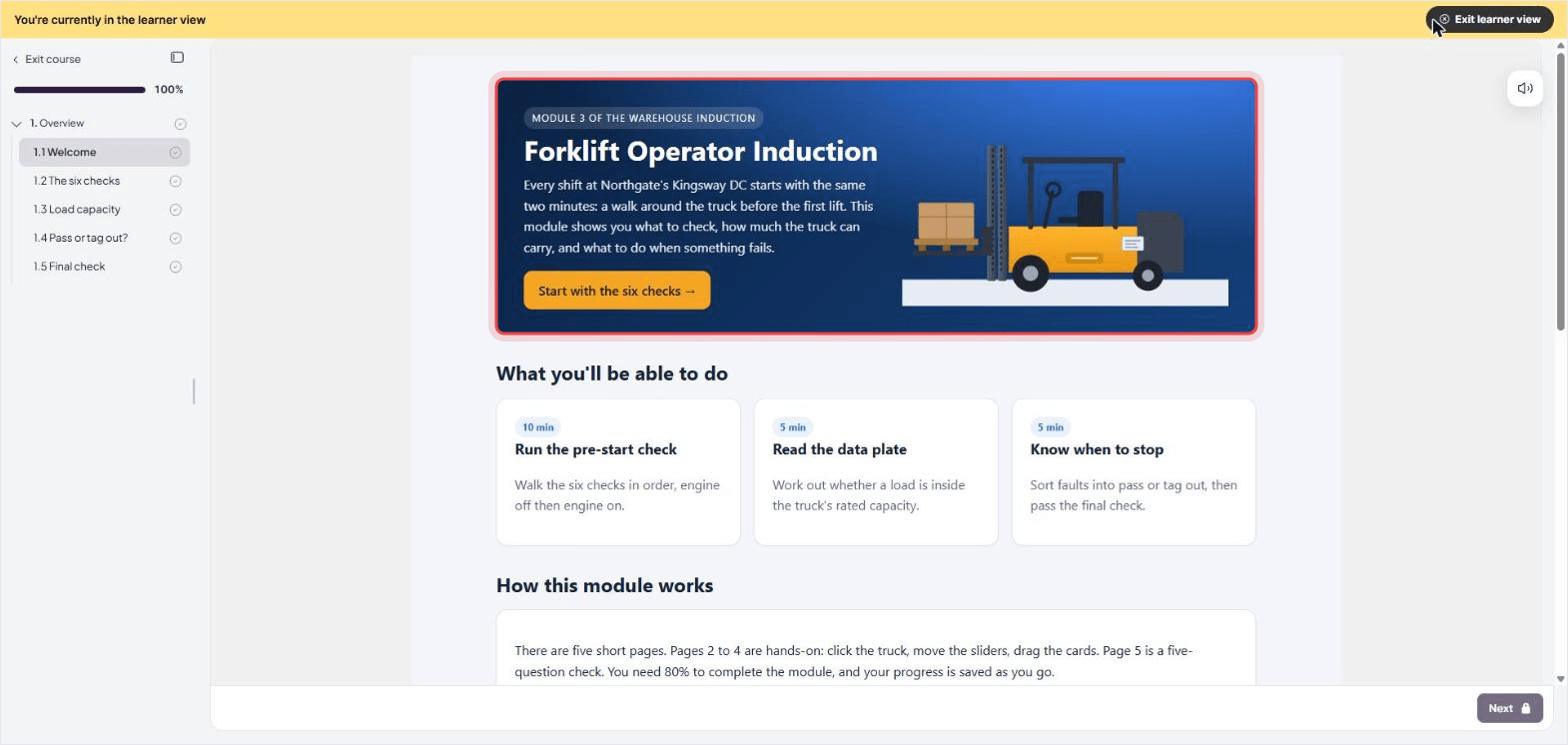
A fictional five-page forklift induction with a shell page, tracking script, SVG, video and imsmanifest.xml, zipped and ready for an LMS or test player.
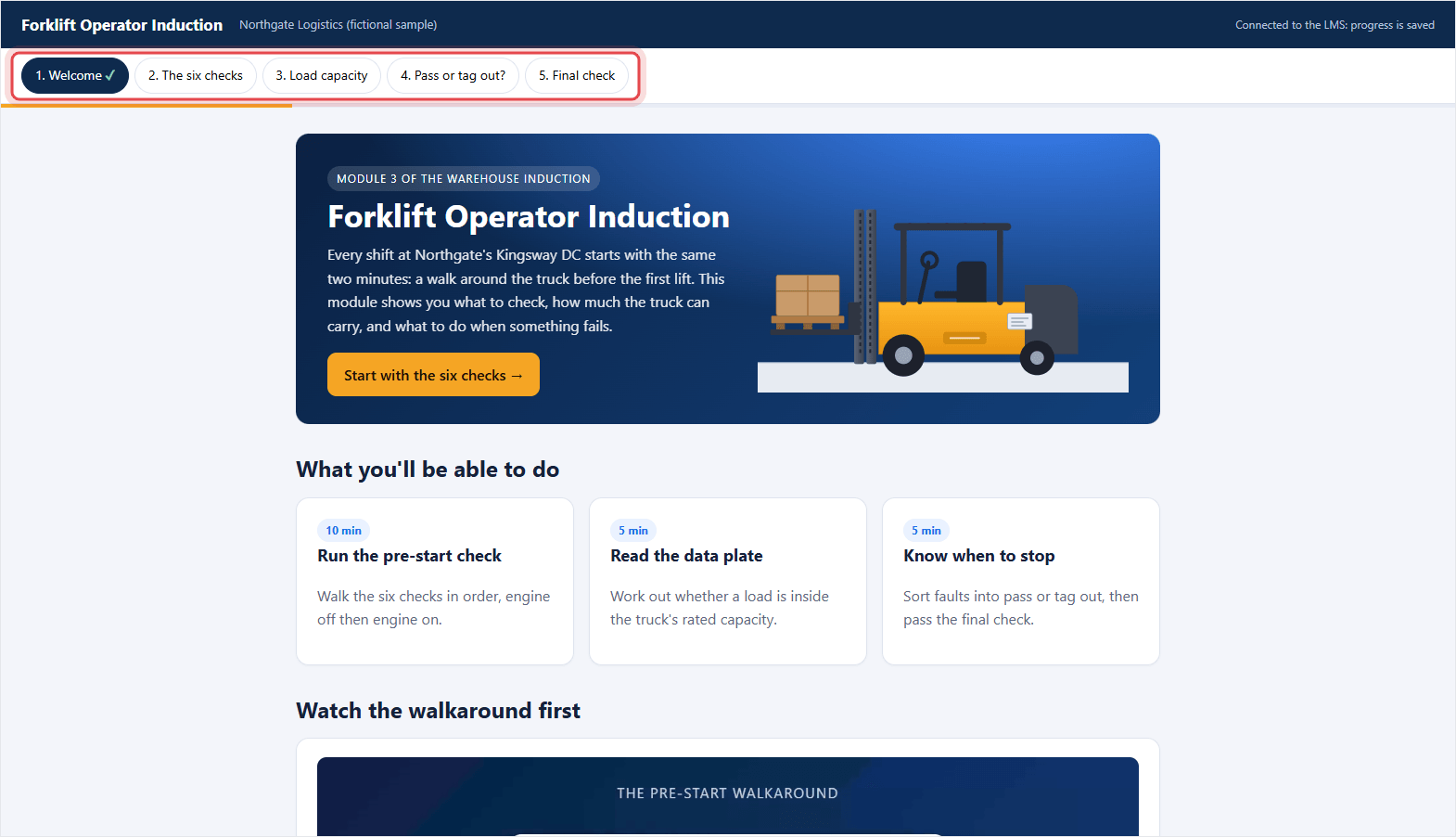
The sample starts with a short video and ends with a five-question check. In between, learners click points on a diagram, move sliders and sort cards.
Pick your route
Start with two questions. Do you want to keep the site's own menu? Do you need its quiz score in the LMS?
| Route | What you get | Tracking in the LMS | Effort | Best for |
|---|---|---|---|---|
| Package the site yourself | The original pages, menu and activities | The results your script sends | Edit a sample package and test it | A site you control and want to keep as it is |
| Use an online converter | A ZIP made from the files you supply | Depends on the converter | Choose a start page and test the ZIP | A quick trial with simple tracking needs |
| Add the pages to Coursebox | HTML pages alongside course lessons, video and a quiz | My test player logged a score of 100 and a pass | Prepare one page, paste it and try it as a learner | HTML that belongs in a larger course |
| Rebuild the lesson | New slides or pages based on your HTML | Depends on what the authoring tool reports | Recreate the content and activities | Material you already plan to rewrite |
If you use a free online converter
Before you upload a file to a free converter, check where it's processed and whether the converter can report the result you need. I used the two walkthroughs below for my tests. If you try a converter, open its ZIP in your LMS and see what gets recorded.
Which route I'd pick
I'd package the site by hand if I needed to keep its menu and quiz and could maintain the tracking code. If the pages were part of a larger course, I'd put them in Coursebox and use the course's own navigation and quiz.
How to turn HTML into SCORM in Coursebox
Start with one page. Paste it into a free Coursebox course and try it as a learner. If the activities work the way you want, add the rest and build the final quiz around them. Open Coursebox and try a page.
For a first try, unzip the sample and use welcome.html. It's ready to paste. With your own files, open the page in a text editor. If it points to separate CSS or JavaScript files, bring that code into the page first. Use image links your learners can open. Leave the video for step 6.
The sample site's five content pages with their CSS and SVG inside each file, the video removed and in-site links set to #.
Step 1: Create a course manually
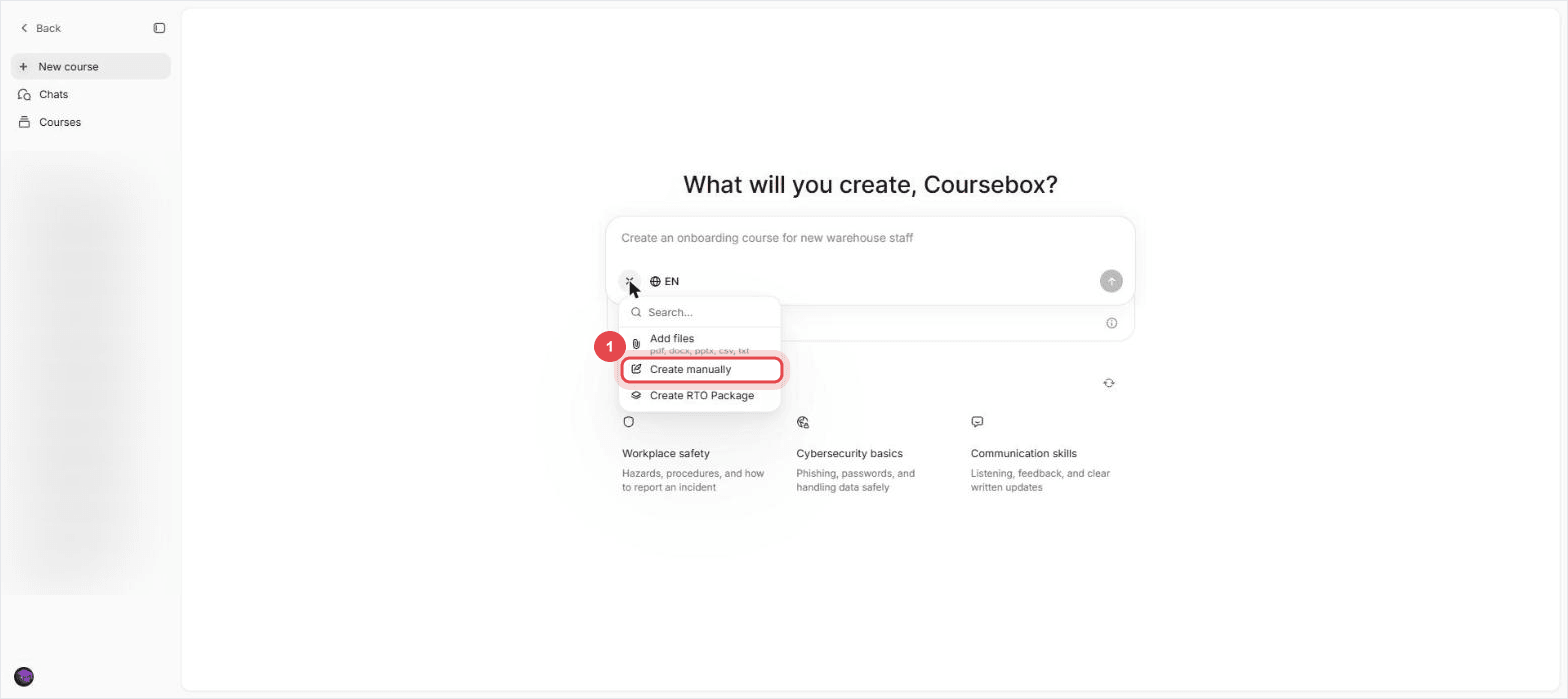
On your dashboard, choose New course from the left menu. Click the + beside the prompt box and select Create manually. Give your course a name and description, then save it.
Step 2: Add one course page per HTML page
Once the course opens, click Edit Course. In the outline on the left, click Add Page. If you're following the sample, call it Welcome so you can find it again when you paste welcome.html.
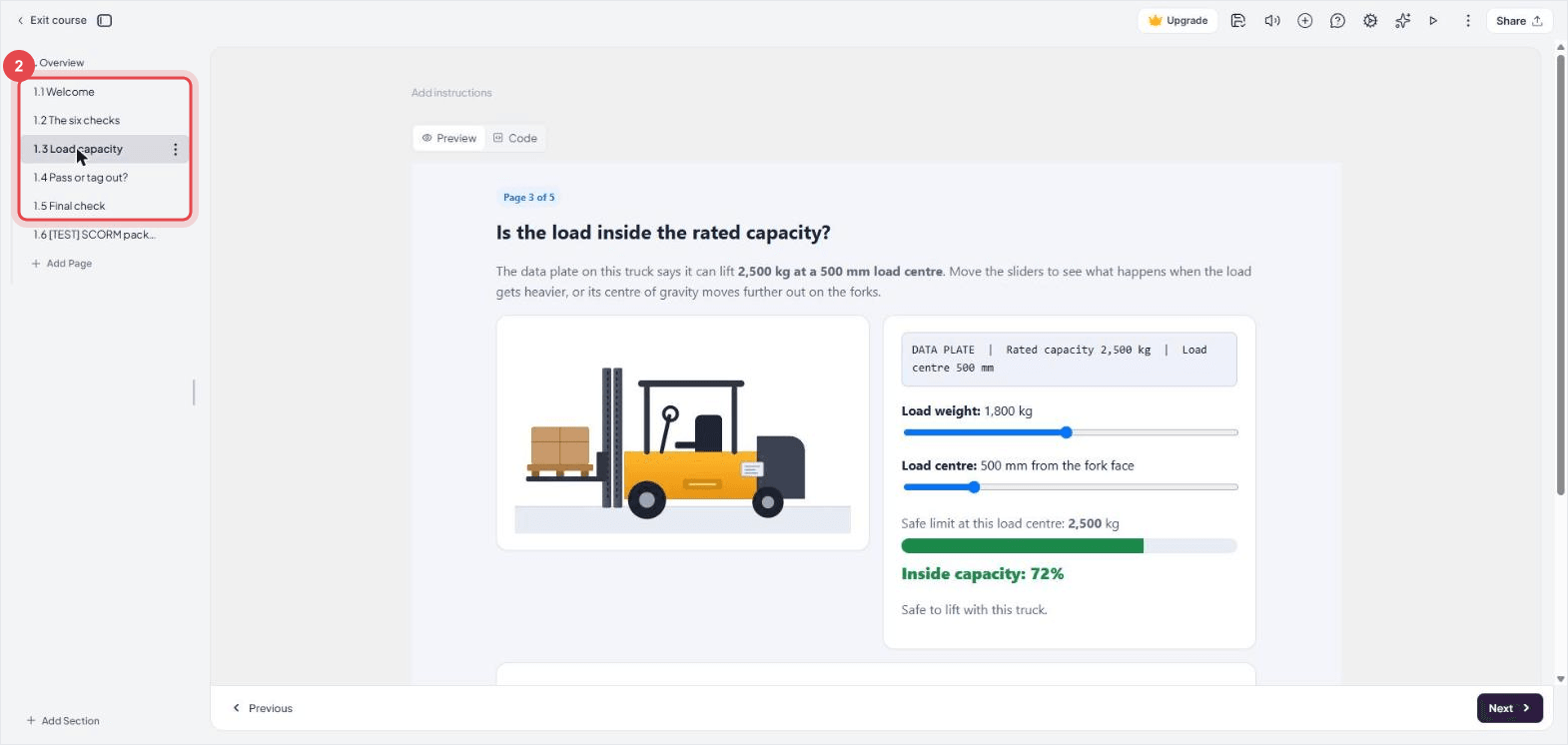
Give each HTML file its own course page. I kept the five lessons in the same order as the original menu. You can start with Welcome and add the others once you've tried it.
Step 3: Add an Embed Code block to each page
On Welcome, click Add block and choose Embed Code under Text. If the page came with a sample text block, you can delete it. Leave the new Embed Code block open for the next step.
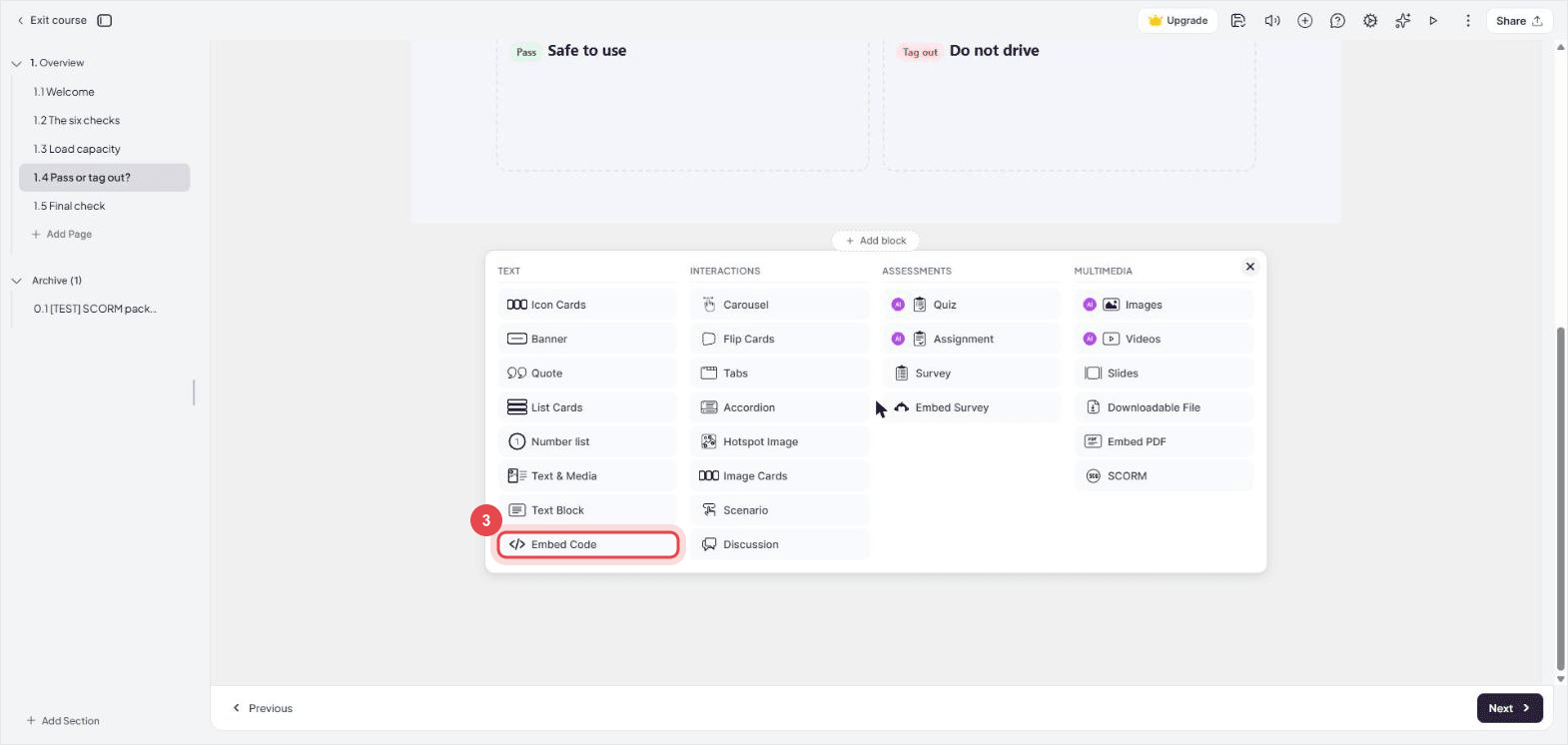
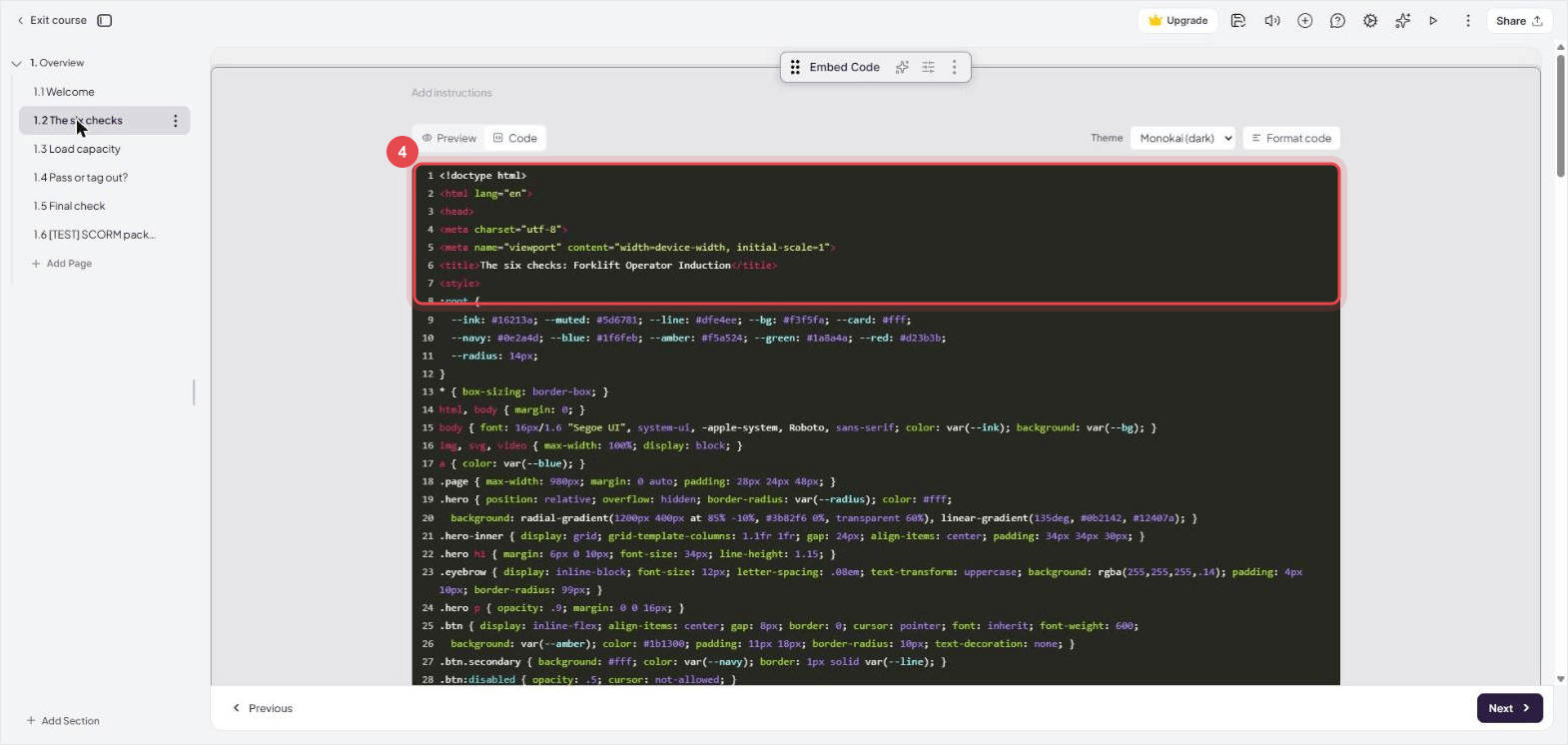
Step 4: Paste the page into the Code tab
Open welcome.html in your text editor and copy the whole file. Go back to the Embed Code block, switch to the Code tab and replace the sample code. Click Preview. You should see the page you just pasted.
Step 5: Try every interaction in the learner view
Click the play icon to see the course as a learner. Try the buttons and activities in this view. Once the first page works, repeat the paste and preview for the remaining pages.
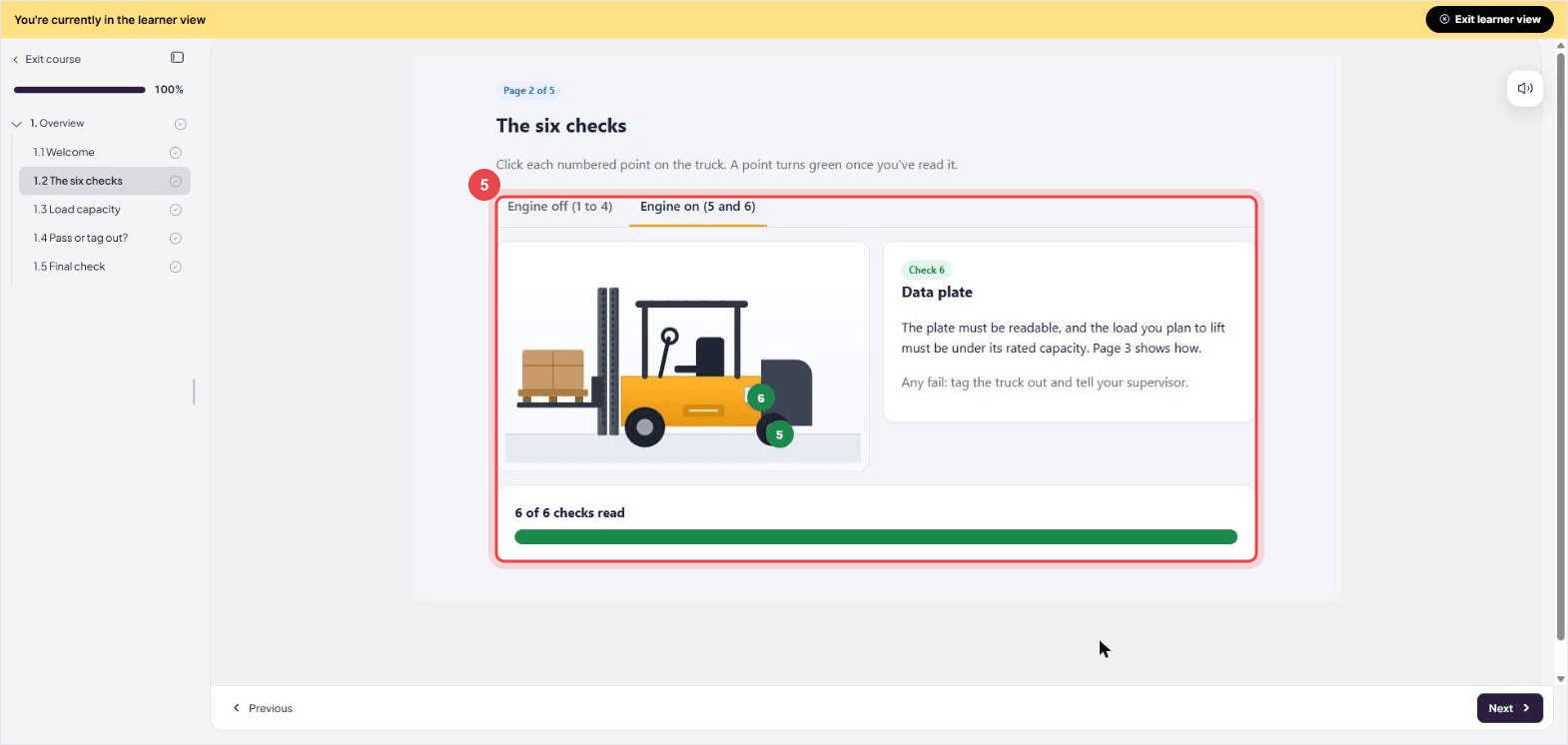
On my sample, all six points on the truck lit up as I clicked them. The load calculator tipped the truck forward at 130% of the limit. I sorted all six cards by clicking each card and then its box. I didn't test dragging.
Step 6: Move the video into a Videos block
Go back to the page that needs a video. Add a Videos block and upload the original file. If learners must watch it before continuing, open the video menu and turn on Force Completion.
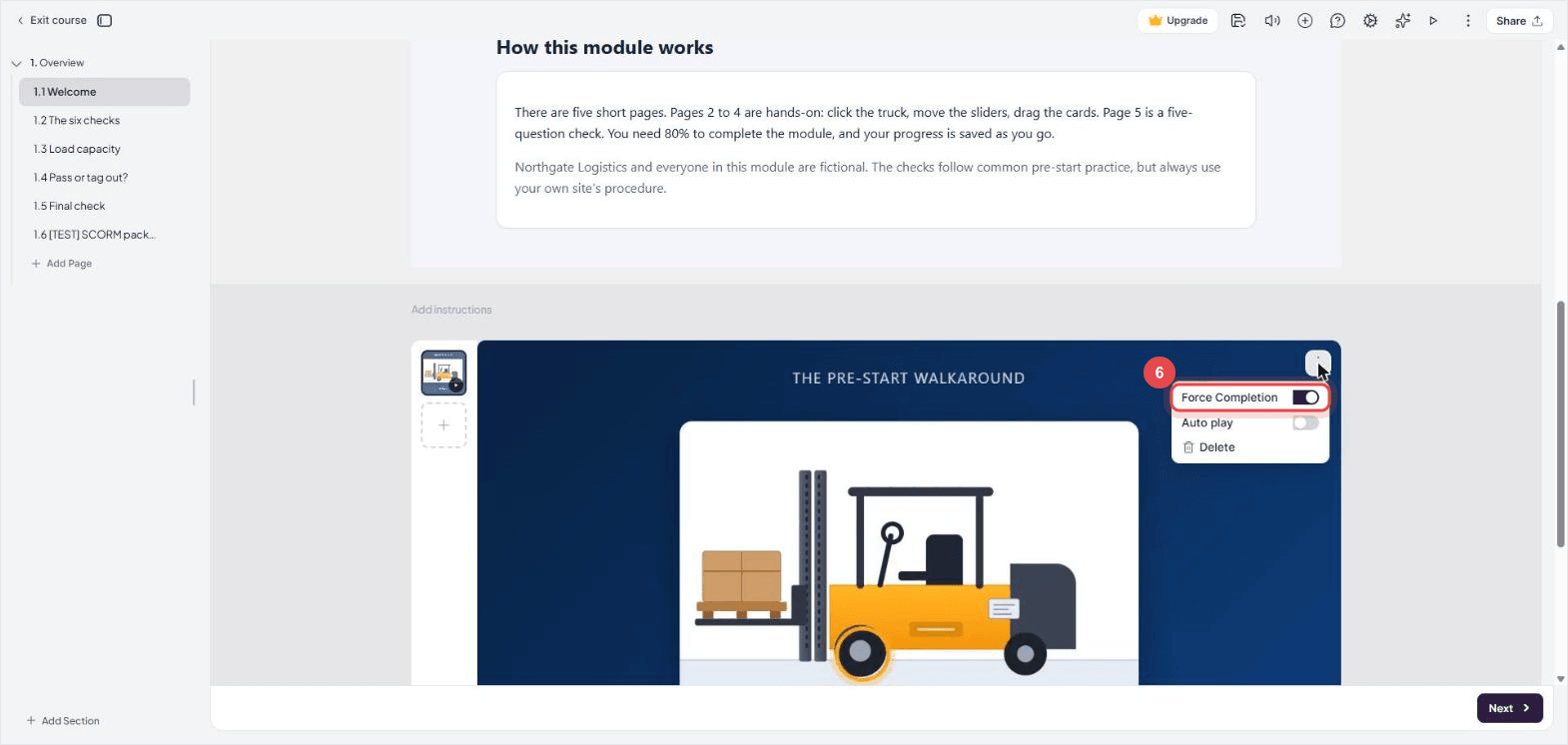
I used the original 14-second video on Welcome. In learner view, Next stayed locked until the video reached the end.
Step 7: Add a Quiz block on the last page and check every question
I scored 100% on the quiz inside my HTML page, but that score stayed on the page. You can leave the HTML quiz in place for practice. If you need a score in the LMS, add a Coursebox Quiz block to the last page and use it as the final check.
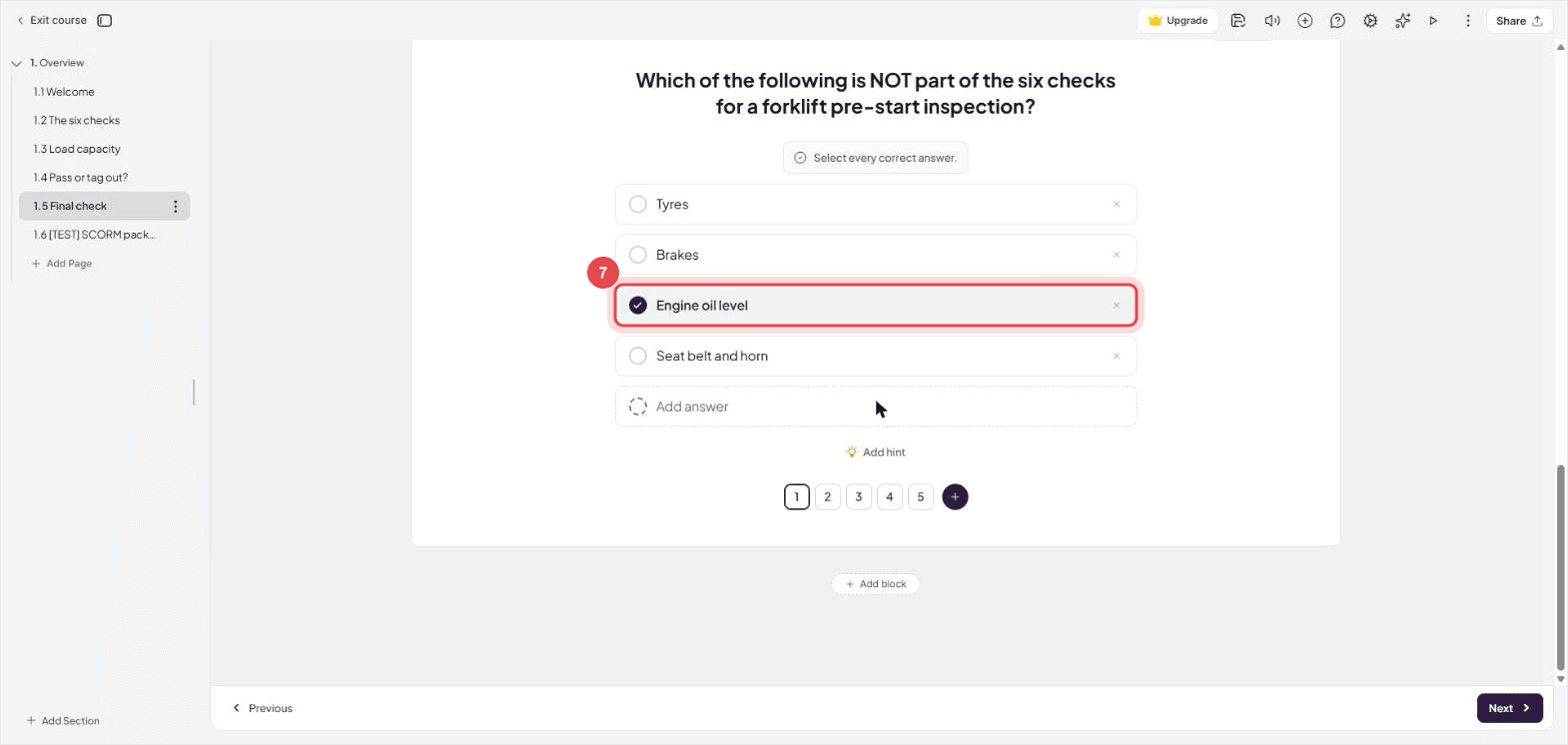
Write five questions from the fictional induction I supplied. Use the pre-start checklist and what the learner should do if a check fails. Give each question one correct answer and flag anything the material doesn't cover.
If you use the AI quiz generator, give it the material the questions should cover and read through the answers before publishing. Mine produced five questions that matched the sample. I checked them one by one, including the question about which item was missing from the checklist. You can also start with the AI quiz generator and supply your own material.
Step 8: Publish the course
When the course is ready, open Share and choose who can access it. Check that the course has left Draft before you export. If it contains private material, test access with an invited learner's account.
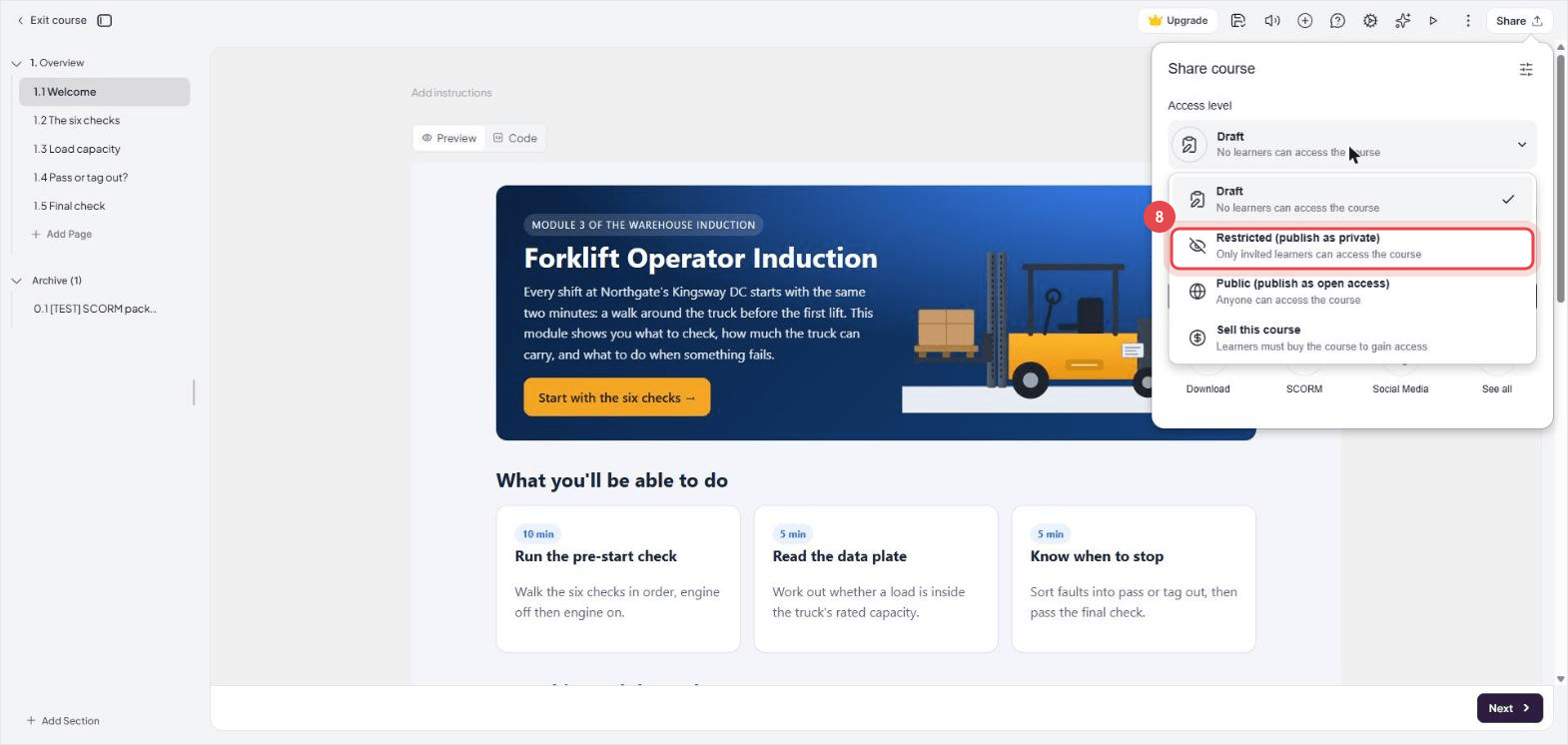
Restricted left my sample in Draft, so I used Public for this fictional course. If your own course stays in Draft, ask Coursebox support for help before sharing it.
Step 9: Export to SCORM 1.2 or 2004
In Share, open SCORM and choose Dynamic SCORM. You'll need Creator or above for this export. Pick the version your LMS supports, then upload the ZIP without extracting it.
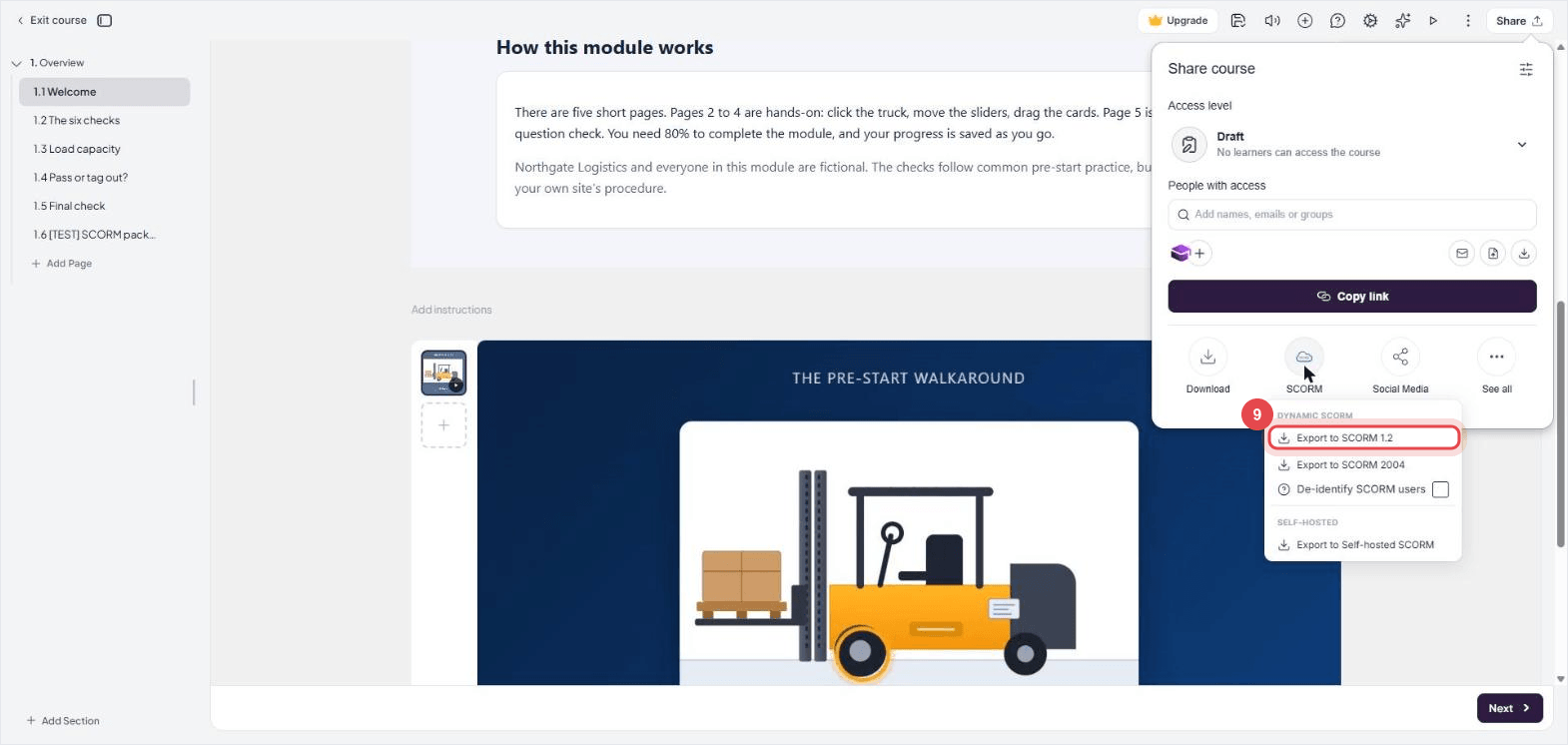
If you choose SCORM 1.2, Coursebox shows what that export can track. Read the window and click Continue to download the ZIP.
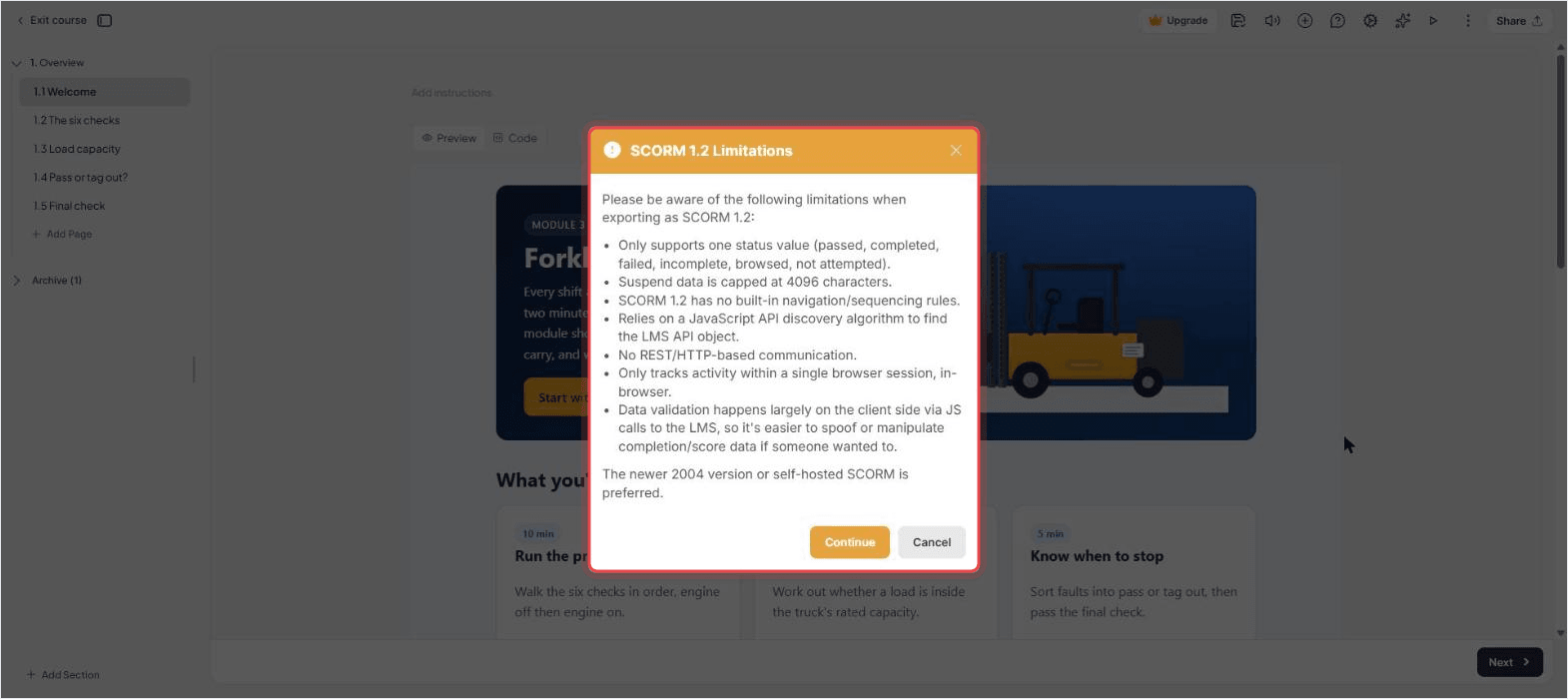
My download was only 9,468 bytes. It opens the course from Coursebox when a learner starts it, so keep the course published.
What I got
The course kept all five pages in order. The clickable points, sliders and click-to-sort activity worked in learner view. The video and final quiz ran in their own Coursebox blocks.
I opened the exported ZIP in a local test player. After I passed the Coursebox quiz and clicked Finish, the player logged a score of 100 and a status of passed. Try that same run as a learner in your own LMS. Check the completion report and gradebook to see where the result appears.
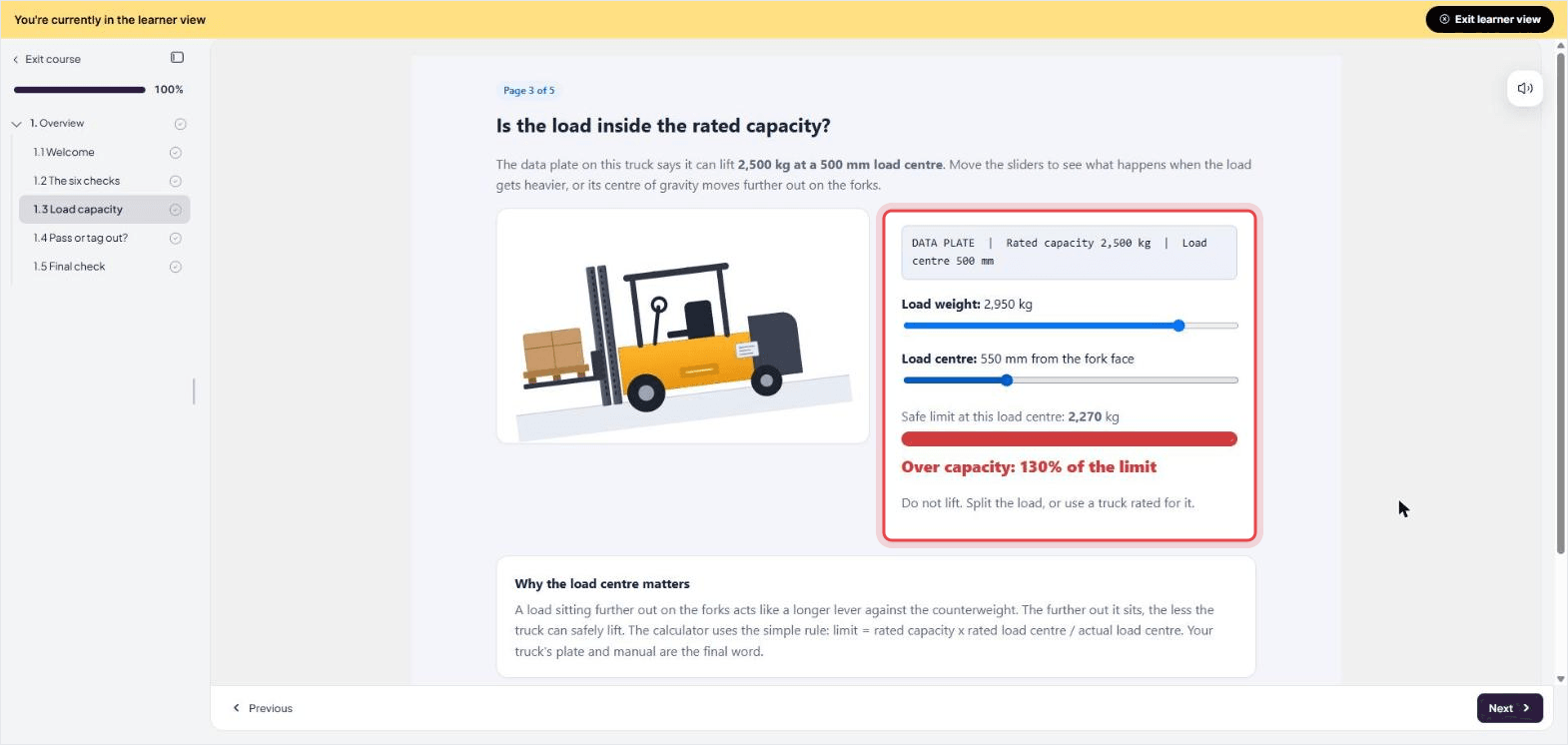
Moving the sliders changes the result in the sample calculator. For real training, use the equipment's capacity plate and approved guidance.
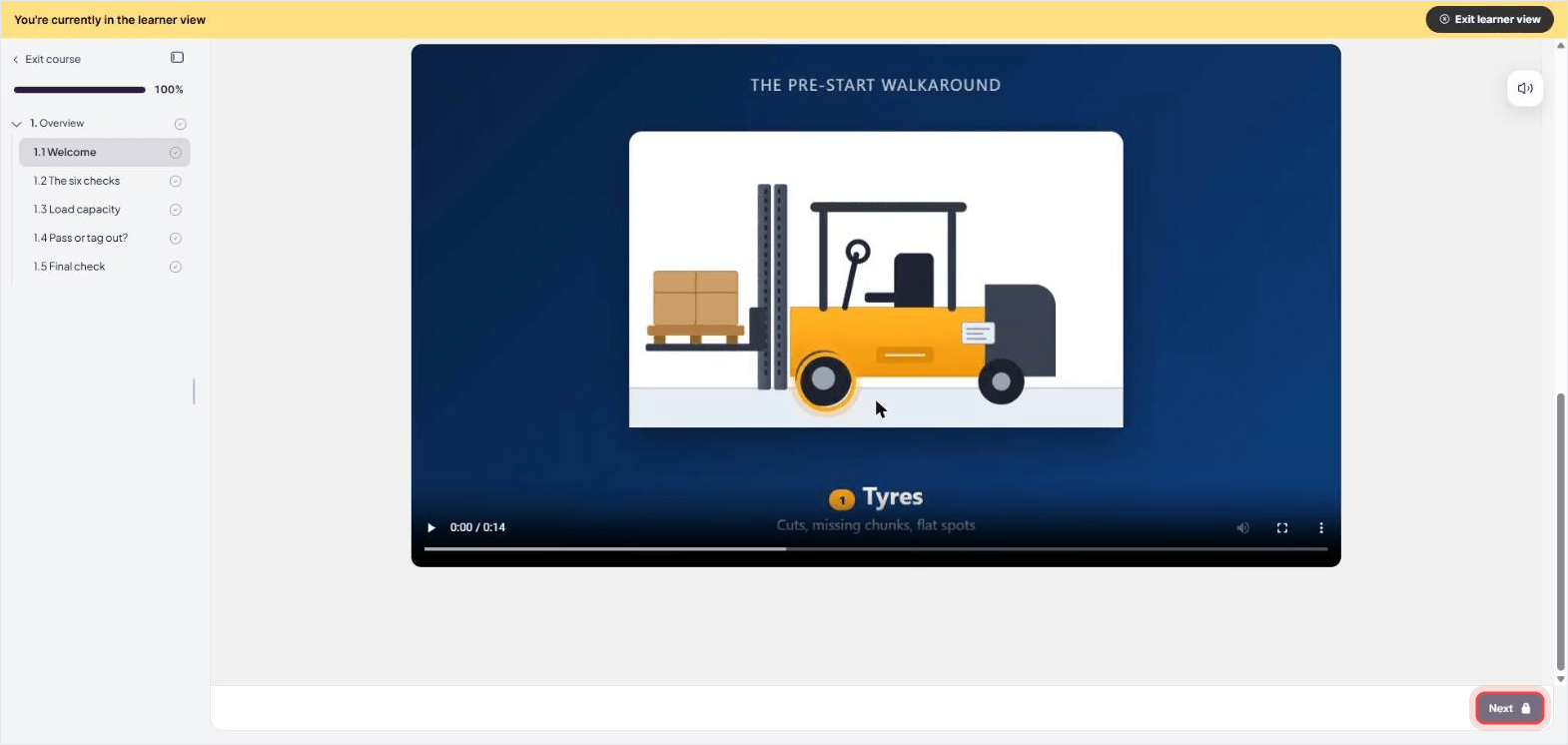
The Next button stays locked while the welcome video plays.
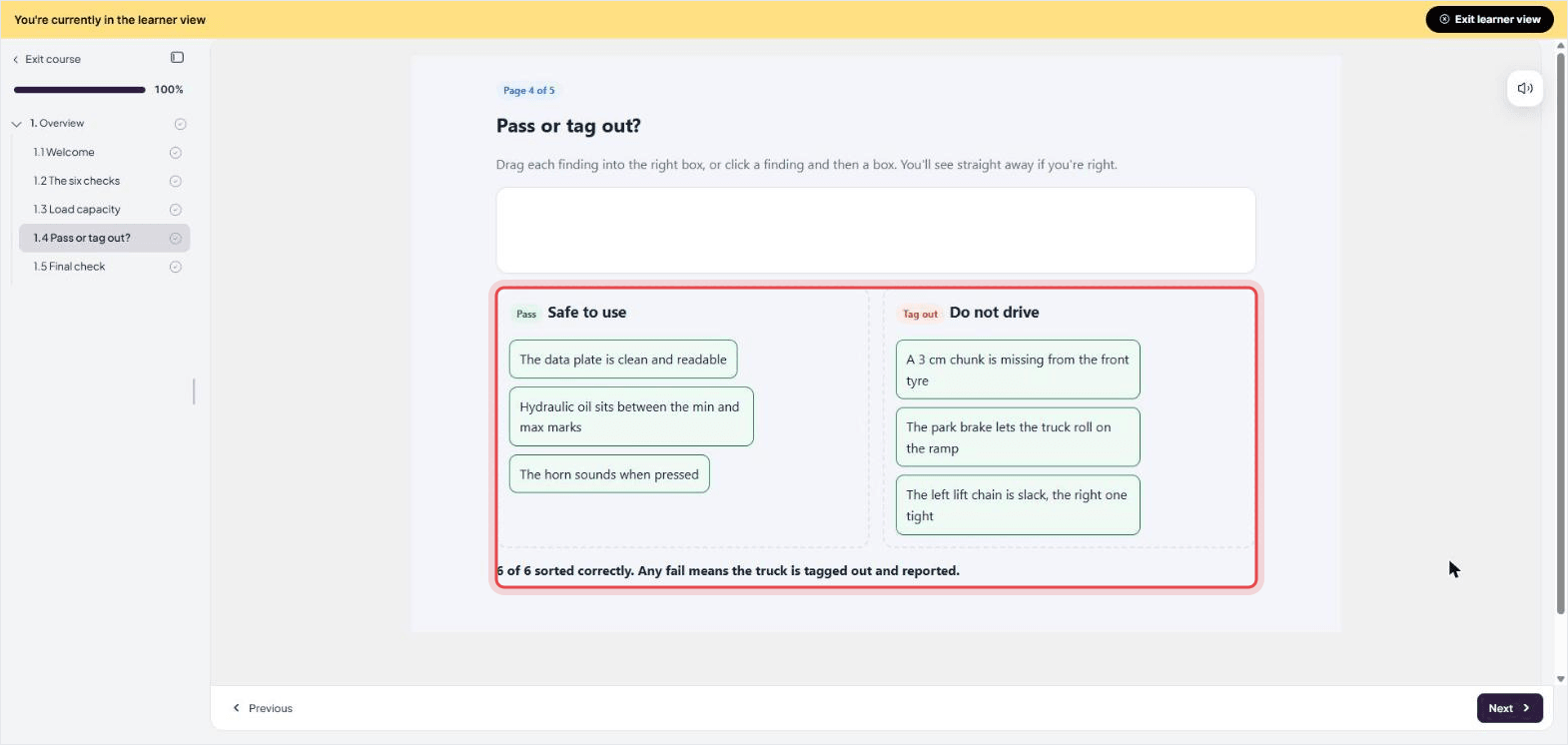
All six cards are in their correct boxes.
Quick fixes before publishing
If you see 100% on the HTML quiz but no score in the LMS, look at where the quiz runs. An Embed Code block displays the page in its own frame. The quiz inside it can show a result on screen. The Coursebox quiz can send that result through the course. After I passed it, I could click Finish.
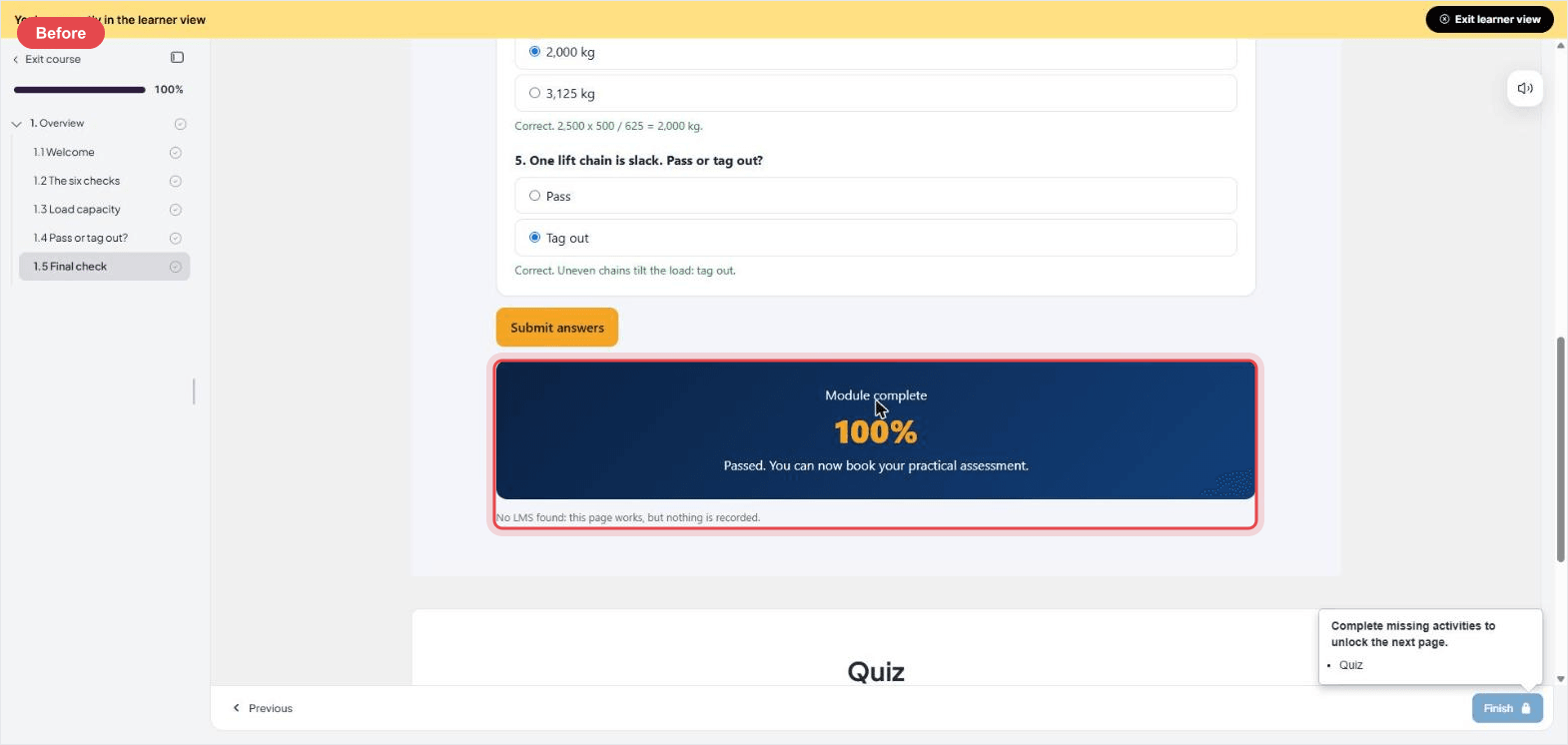
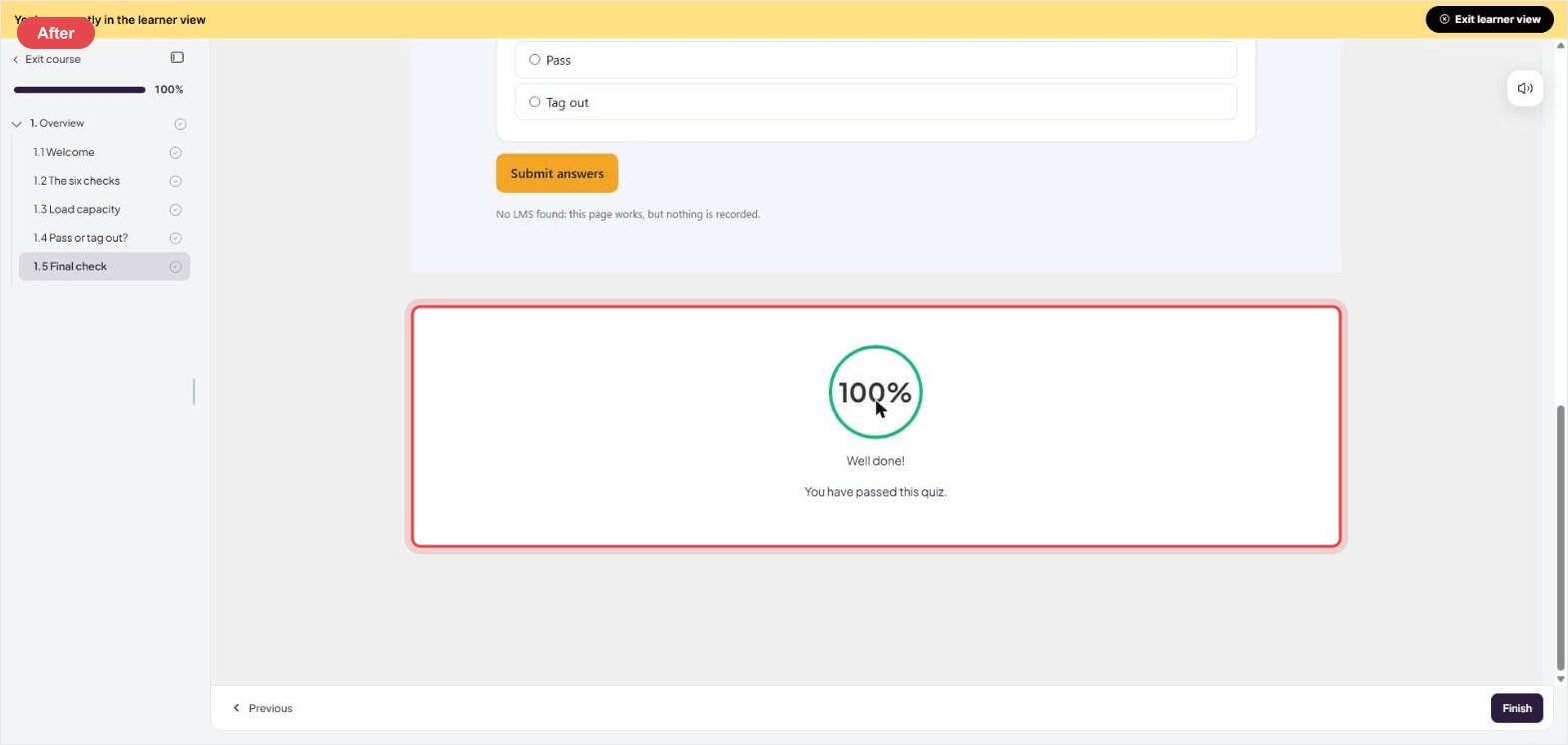
If you keep both quizzes, give them different jobs. Use the HTML quiz for practice and the Coursebox quiz for the final score, or remove the practice quiz if it asks the same questions.
SCORM 1.2 or SCORM 2004?
Start with the version your LMS accepts. SCORM 1.2 can carry a score, completion status and a bookmark when the package sends them. SCORM 2004 can report completion separately from passing and has more room to save progress. Check which of those details your LMS actually shows.
I used SCORM 1.2 for the hand-built sample. It saved both the last page I finished and the list of pages I'd completed.
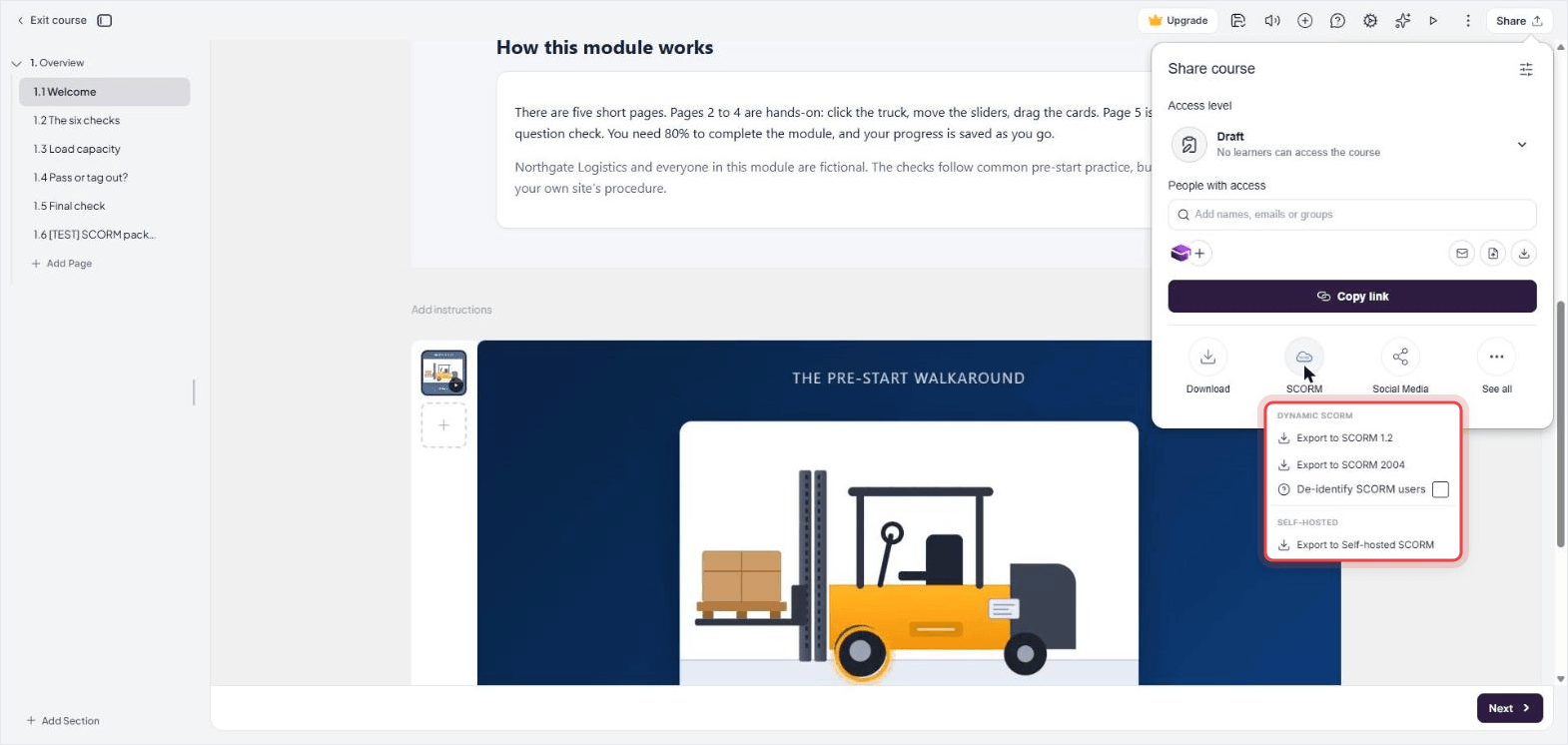
If you want Coursebox to avoid storing learner names and emails from the package, look for De-identify SCORM users in the export menu.
With Dynamic SCORM, learners see edits to existing pages the next time they open the course. If you add or remove pages, export a fresh ZIP.
Limits to know before you start
- If you need a package that runs without Coursebox, plan for that before you paste the pages. Self-hosted SCORM leaves Embed Code blocks out. For this kind of site, packaging the original files by hand keeps them together.
- If you get a blank screen, check that the Coursebox course is still published and the account is active. Upload the ZIP intact. If it still won't open, check whether the LMS allows it to load coursebox.ai.
- If the quiz works on screen but the LMS shows no score, check whether the learner finished the Coursebox quiz or only the quiz inside the HTML page.
- If images are missing after you paste, open the HTML and check where each image points. A file on your computer won't be available to learners. Use a reachable image URL or include the image in the page itself.
- If your hand-built ZIP won't upload, open it and look for imsmanifest.xml. When I tried a ZIP without it, the Coursebox SCORM block rejected the file without a message.
- If you want to test the hand-built ZIP inside a Coursebox SCORM block, that block is available on Pro and above. A SCORM test player is another way to open the ZIP.
If your HTML is a whole website
Five pages were manageable either way. For a bigger site with a shared menu and lots of files, I'd package the site as it is. I'd bring individual pages into Coursebox when I wanted to use them alongside other lessons.
How to wrap HTML in SCORM by hand
Download and unzip the finished sample above so you have something to open. For a single HTML page, that page can be the one the LMS opens. If your course has several pages, look at index.html in the sample to see how the menu and lessons fit together.
- Put your HTML files and the folders they use together. Keep the same folder names and paths you use on the site so the pages can still find their images, styles and scripts.
- Open index.html in the sample. It's the page the LMS launches. It holds the menu and progress bar, and loads each lesson below them. As learners switch lessons, index.html stays open and keeps talking to the LMS.
- In the same folder, open imsmanifest.xml in your text editor. Change the course title and point the resource to the HTML file you want the LMS to open. Update the list of files to match your own site. In the sample, index.html is the launch page and the passing score is 80.
- Select the files and folders inside the course folder and compress them into a ZIP. Open the ZIP to check that you can see imsmanifest.xml right away. Mine had 11 files and came to 276 KB, most of it the video.
- Upload the ZIP to a test player such as SCORM Cloud, or open it in the LMS where you plan to use it. Start the course and check that the menu and lessons open. Then check what the player records when you finish.
Add tracking so the LMS records a score
If the course opens but you see no result, check the tracking script. In the sample, index.html loads assets/scorm.js once. The script finds the LMS connection and opens it with LMSInitialize.
When a learner finishes a page, the sample saves the last finished page in cmi.core.lesson_location and the completed pages in cmi.suspend_data. It then calls LMSCommit to save them. If learners need to pick up an unfinished attempt, set cmi.core.exit to suspend before they leave and test it in your LMS. The sample saves the bookmark and leaves that exit field unset.
The final quiz sends its score to the shell. The shell saves the number in cmi.core.score.raw and sets cmi.core.lesson_status to passed at 80 or above, or failed below 80. It calls LMSFinish when the shell closes. You can open the sample in a browser on its own, but it has nowhere to send a result.
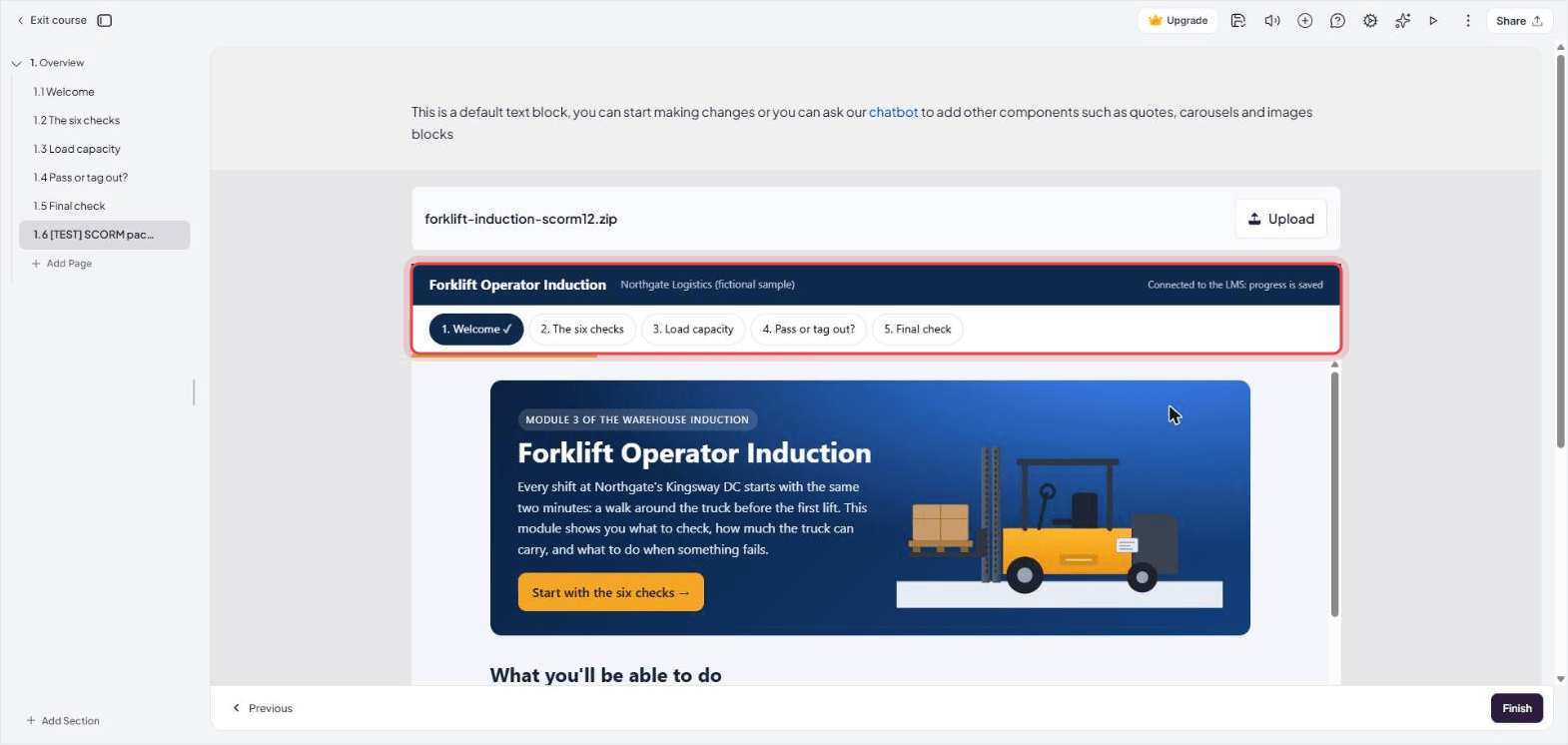
I added a SCORM block to a spare Coursebox page and uploaded the ZIP. The course opened with its own menu and progress bar, and the header confirmed it had connected to the LMS.
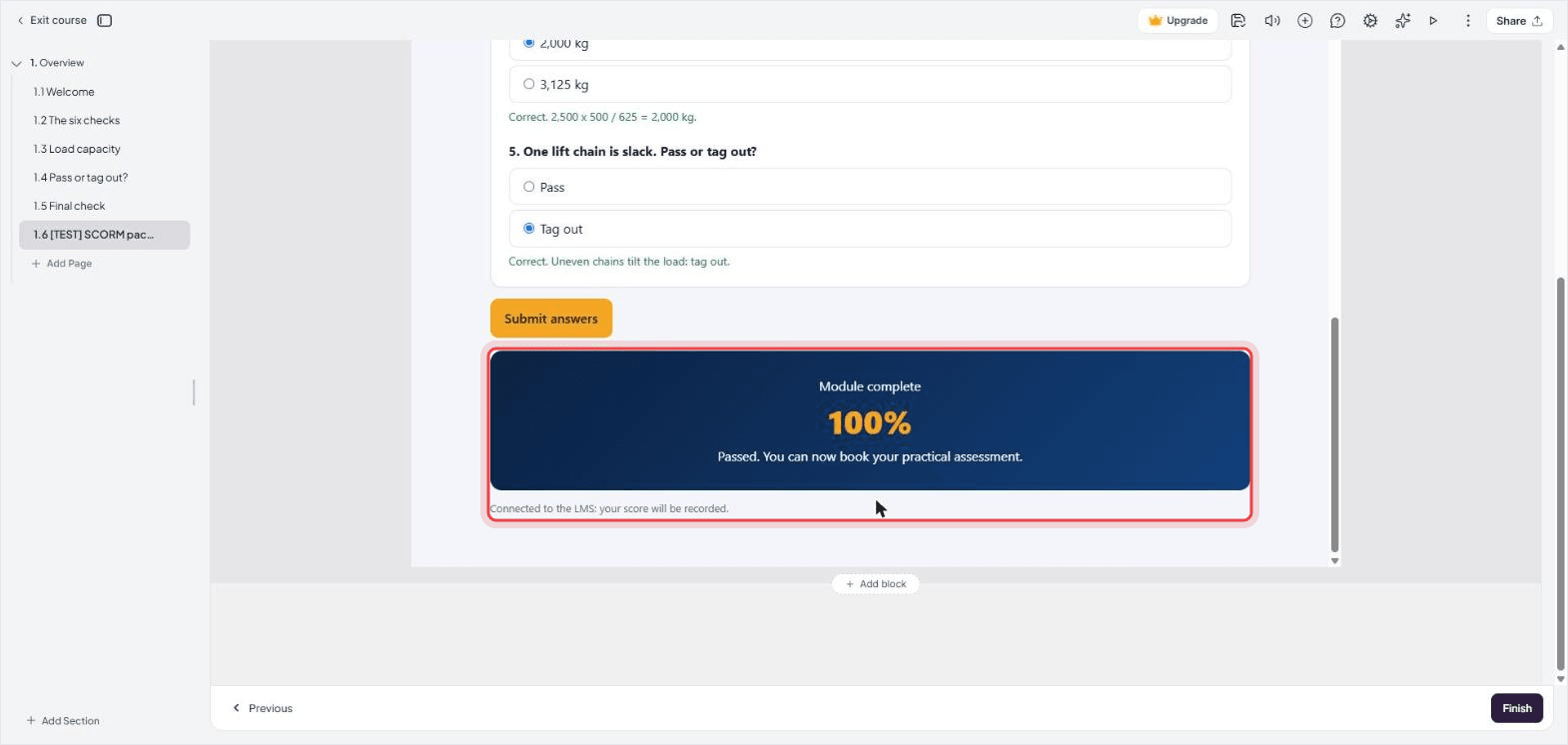
I finished Welcome and went straight to the final quiz for this test. The player showed passed, a score of 100, quiz as the last page, and welcome and quiz as the two completed pages. Check those same fields after a run through your own package.
Working with another kind of file? The MP4 to SCORM and Word to SCORM guides start from those formats. For a PDF, see how to turn it into a course. If you're deciding which standard to use, see cmi5 vs SCORM.
Which way should you convert your HTML to SCORM?
If you'd like to keep the site as it is and can maintain the tracking script, start with the hand-built sample. Replace one page, ZIP the files and see what your LMS records before you adapt the rest.
If the page is one part of the training you want to deliver, try it in the SCORM authoring tool. You can build the rest of the course around it, from a video learners need to watch to a final quiz that reports a score. Start with one page in learner view. When the course is ready, export it as Dynamic SCORM and check the result in your LMS.
Frequently Asked Questions
Yes. Start by unzipping the finished sample in this guide. Open imsmanifest.xml to see which page the LMS opens and which files it uses. If you need a score, use or adapt the tracking script as well.
SCORM is still used to deliver training through an LMS. Check which version your LMS accepts before you export. Moodle's built-in SCORM activity supports 1.2.
Yes. Try the same steps with your page. If it uses video or interactive code, test those parts in the finished package before you hand it to learners.
First check where the quiz runs. A quiz inside pasted HTML can show a result without sending it to the LMS. Use the Coursebox quiz for the recorded score, or add tracking to a package you build yourself.
Open the ZIP and look for the launch page named in imsmanifest.xml. In a self-contained package you'll usually find the HTML there. A Coursebox Dynamic SCORM ZIP opens the course hosted in Coursebox.
Alex Hey
Alex Hey is a technical marketer with 10 years of hands-on growth and digital marketing experience. He cofounded Coursebox together with Travis Clapp who he met online when looking for a cofounder to build a globally impactful software product. He works in the Perth, Western Australia office as the COO. He built the world's first automated funnel for patient recruitment before building Coursebox. After launching Coursebox in mid 2023, he drove +400k organic sign ups for Coursebox. Alex leads the marketing and digital growth of Coursebox and works with the product development team bringing a passion for data-driven product decision and exceptional user experience. Alex is determined to build the world's easiest way to build the perfect course.

