

10 Best Free AI Flowchart Generators in 2026 (Tested)
I tested the AI flowchart generators that turn a text prompt into an editable diagram. The 10 best free ones, ranked honestly on output, export and where the free tier really ends.

The best free AI flowchart generators in 2026 include Whimsical, Eraser, Lucidchart, Miro, Mermaid, Draw.io, Jotform, Cloudairy, EdrawMax and Coursebox. Compare editable output, export formats and AI limits.
- Draw.io now includes native AI generation as well as manual editing. Mermaid remains useful when you want to keep diagrams as text beside documentation.
- Free plans have different limits: objects, editable files, team-wide credits or AI tokens. Check revisions and exports as well as the first generated chart.
- Coursebox supports downloadable flowchart images and training built around the process. A dedicated diagram editor is better when specialist notation or editable vector source is required.
Choose your main task for a starting recommendation from these four tools. Compare the full list below for other needs.

Turn complex ideas into clear, professional diagrams using AI
I have watched a lot of AI flowchart tools turn a clean prompt into a tangle: boxes overlapping, arrows crossing, a label cut in half. When they work, though, they turn ten minutes of dragging shapes into ten seconds of typing. So I ranked these by how reliably they produced an editable chart, how much the free plan actually allowed, and what I could export.
Almost all of these have a free way in, so that is where I focused: what you get before a paywall, whether the AI reads a plain-English prompt or wants code, and whether you can export the diagram cleanly. I ran the same process through each one, an employee-onboarding flow with two decision branches, and watched what came back.
I build courses and training for a living, so I also checked the two jobs that count there: mapping a course or curriculum, and drawing a branching scenario with real decision points. I have flagged which tools are full diagramming studios, which are quick text-to-flowchart boxes, and where the free tier runs out.
I work at Coursebox, which has an AI flowchart generator for diagrams you can download or use in training. I have included it alongside diagramming studios, collaborative whiteboards and text-based tools so you can compare the output and editing workflow.
How I judged them
These are the five things that separate a flowchart tool you keep from one you close after the first tangled diagram.
- Text-to-flowchart, not just drawing. Can you describe the process in plain English and get a real, structured diagram back, or is the AI a light assist bolted onto a manual canvas? The first is what people mean by an AI flowchart generator.
- What the free tier actually gives you. AI credits, object limits, watermarks, and whether it needs a sign-up at all. This is a free-first list, so the free ceiling is part of the ranking, not a footnote.
- Editable output. A flowchart you cannot rearrange is just a screenshot. The good ones let you drag, relabel and re-prompt until the logic is right.
- Export you can use. PNG and SVG (a scalable image that stays sharp at any size) for slides and docs, PDF for print, and Mermaid or code if you want a diagram stored as text you can track changes to, kept beside your other documents.
- Fit for course and training work. Mapping a curriculum, or a branching scenario with decision points, is a different job from a software-architecture diagram. Some tools do one far better than the other.
How I tested these
I used an employee-onboarding flow with two decision branches to compare generation, editing and export, using the free tier where available. The observations below describe that comparison; current feature and pricing checks were updated on 19 October 2026. Where a tool has changed since the original trial, I have separated the newer capability from that observation.
The 10 tools at a glance
| Tool | Best for | Free tier | Text to diagram | Watch out for |
|---|---|---|---|---|
| Whimsical | A quick, editable flowchart or course map | Free (~50 objects/mo, watermark) | Yes, from a prompt | Mishandles branches; no role lanes |
| Eraser | Technical, code-based and BPMN (business-process) diagrams | Free (3 files, 3 AI diagrams) | Yes, from text or code | Engineer-first syntax; tiny free cap |
| Lucidchart | Complex diagrams and SOPs, AI-assisted | Free (3 docs, object cap) | Yes, from a prompt | Free fills fast; SVG on paid |
| Miro | Collaborative team flowchart workshops | Free (3 boards, ~10 credits) | Yes, from a prompt | Team-wide AI allowance; paid member roles |
| Mermaid | Free, text-based diagrams you can track like code | Free and open source | Yes, via code (or Chart AI) | Text syntax; limited visual control |
| Draw.io | Free editable diagrams with AI generation | Free and open source | Yes, Generate and model integrations | Check hosted limits or your model-provider costs |
| Jotform AI Flowchart | A free, no-limit decision-flow sketch | Free (no AI-credit limit) | Yes, from a prompt | PNG-only export; single-user |
| Cloudairy | A cheap collaborative team flowchart | Free (30 credits/mo, 3 items) | Yes, from a prompt | Check paid-plan exports and credit usage |
| EdrawMax | Many diagram types in one deep tool | Free (200 AI tokens) | Yes, from text or code | AI tokens and optional subscription add-ons |
| Coursebox | Downloadable diagrams and learning activities | Free to start | Yes, with decision branches | Check output format and editing needs |
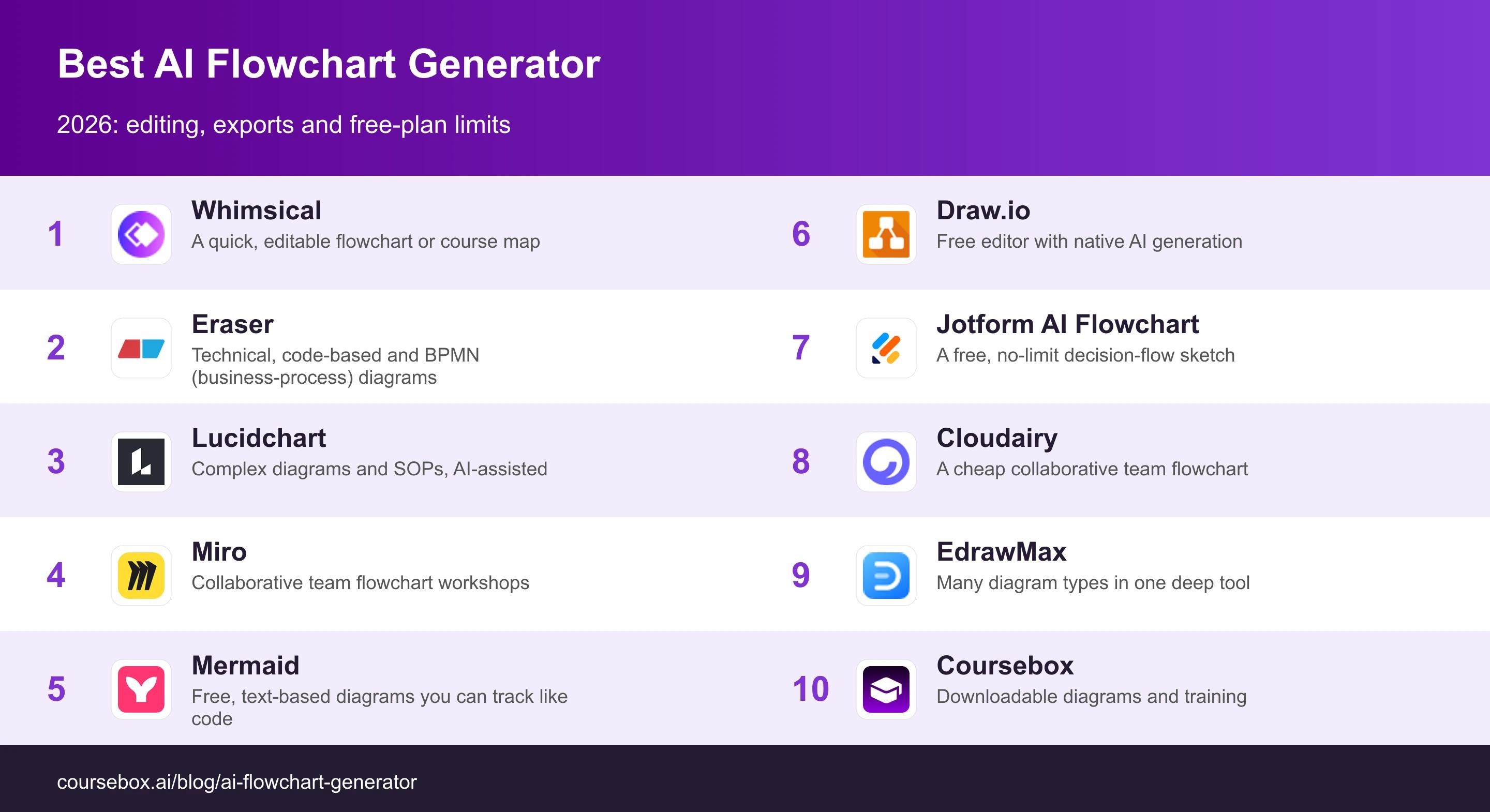
Prices and advertised free-plan limits checked on 19 October 2026. An AI allowance is separate from the number of files you can edit or export.
The 10 best free AI flowchart generators
1. Whimsical

Whimsical is the one I reach for first for a quick flowchart: type a plain-English prompt and it lays out a structured, editable diagram on a clean canvas in seconds. It is built for exactly this, flowcharts, mind maps and simple wireframes, rather than being a diagram feature bolted onto a bigger tool.
Free includes 50 board objects per month, ten AI credits per member and a watermark on exports. In my comparison, decision branches sometimes needed manual correction. That makes Whimsical a useful first draft for a process, with a final check that every arrow reaches the intended next step.
In testing: I described the onboarding flow and got a tidy, mostly-right diagram in seconds, faster than any drag-and-drop tool. The two decision branches needed straightening by hand, one diamond landed in the wrong place, but fixing it was a click, and for a course map or a simple decision tree it was the smoothest of the lot.
Pricing: Free has the object and AI limits above. Pro starts at US$10/editor/month billed annually. Check the export and collaboration features on the selected tier.
2. Eraser

Eraser, through its DiagramGPT feature, turns a plain-English prompt or a code snippet into a polished diagram in seconds, and it covers the technical shapes the others skip: flowcharts, database maps, cloud-architecture diagrams and BPMN, the standard notation for business-process diagrams. It works as diagram-as-code, meaning you write the diagram as text and watch the picture update.
The syntax-first workflow needs more adjustment for a non-technical team than a drag-and-drop canvas. Free includes three files and three AI diagrams, so test a representative process rather than spending the allowance on tiny examples. Export options include PNG, SVG, PDF and Markdown.
In testing: The onboarding flow came back clean, and feeding it a code snippet for a data flow was where it pulled ahead of the visual tools. But three free AI diagrams is almost nothing, I burned them in one sitting, and a colleague who does not write code found the syntax off-putting.
Pricing: Starter is US$15/member/month billed annually or US$20 billed monthly, with 40 AI diagrams. Compare the generation allowance with the number of diagrams you will revise, not just create once.
3. Lucidchart
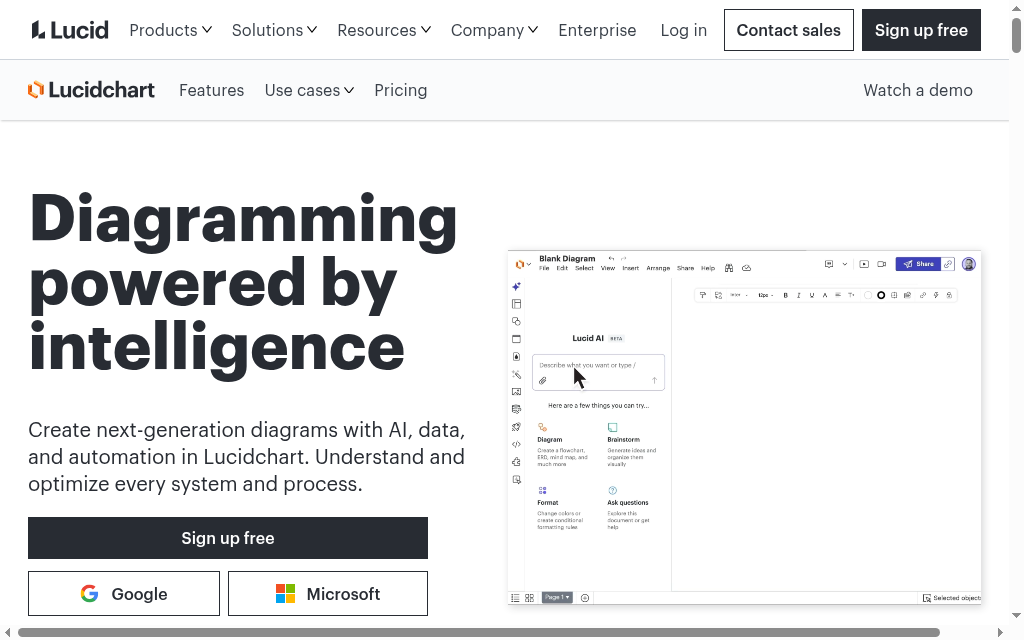
Lucidchart is the heavyweight diagramming tool with a real AI start: type a prompt and it generates a flowchart, a database diagram or another diagram you then refine, and a 2026 update also turns an uploaded image of a diagram into an editable one. It is deep: it links shapes to live data, restyles them by rule, and imports Microsoft Visio files, so it suits serious process and SOP (standard-operating-procedure) work.
Free is limited to three editable documents, so it is better for a small evaluation than a large SOP library. For a larger rollout, check the current object limits, export quality and collaboration features on the selected plan. Importing an existing diagram is useful only if its connections and labels remain editable.
In testing: The AI gave me a solid onboarding skeleton to build on, and Lucidchart is where I would take a complicated branching scenario that needs to stay tidy. The free ceiling is the friction: the three-document limit runs out quickly, and I hit the view-only wall on an older diagram mid-edit.
Pricing: A free plan is available. Paid pricing varies by plan and billing period; confirm the export formats and team permissions needed before purchasing.
4. Miro

Miro comes at flowcharts from the whiteboard side: its AI generates a diagram from a prompt, but it lives on a collaborative canvas built for teams thinking together, not a dedicated text-to-diagram engine. If your flowchart is really a workshop, mapping a course with colleagues live, that is where it fits.
Free includes three editable boards and ten AI credits per month for the organisation. That allowance can run out quickly in a workshop where several people generate alternatives. Free-team members are not automatically paid seats; on paid plans, distinguish members from guest and visitor permissions before inviting collaborators.
In testing: Live cursors and comments made the onboarding workshop easy to follow, and the prompt produced a usable diagram. I would pick it when colleagues need to discuss and revise the process together. For a solo chart, the wider whiteboard can be more workspace than the task needs.
Pricing: Free has the board and team-wide AI limits above. Starter is displayed from US$8/member/month billed annually. Confirm member roles, export quality and AI allowances on the selected plan.
5. Mermaid
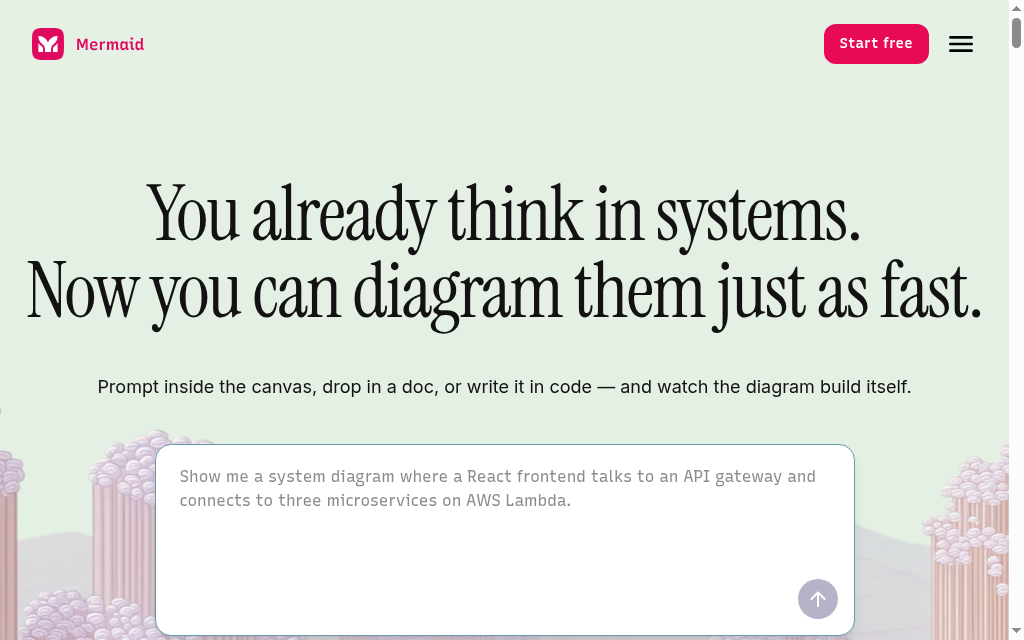
Mermaid is the free, open-source way to make a flowchart by writing it as text, and it is the engine behind the most popular AI trick here: ask ChatGPT or Claude to write the Mermaid code for your process, paste it into an editor, and the diagram renders. The open-source project (mermaid.js) is free forever; Mermaid Chart, the commercial product, adds a built-in AI that generates the diagram from a plain-English prompt.
A text definition is portable and easy to keep beside documentation, but layout changes require a different approach from dragging shapes. The open-source Mermaid editor supports SVG and PNG output. The commercial AI workspace is a separate service with its own plans and usage allowances; the screenshot shows that commercial interface.
In testing: I had ChatGPT write the Mermaid for the onboarding flow and pasted it into the live editor, and it rendered correctly first try, branches and all, at zero cost. Tweaking the layout meant editing text, which is slower than dragging a box, but keeping the diagram as code that GitHub renders is worth it for anything that has to stay in sync with a doc.
Pricing: The open-source engine and live editor are free. Commercial Mermaid AI plans and any external AI service are priced separately. An existing AI subscription or local model changes the cost of the text-to-diagram workflow.
6. Draw.io
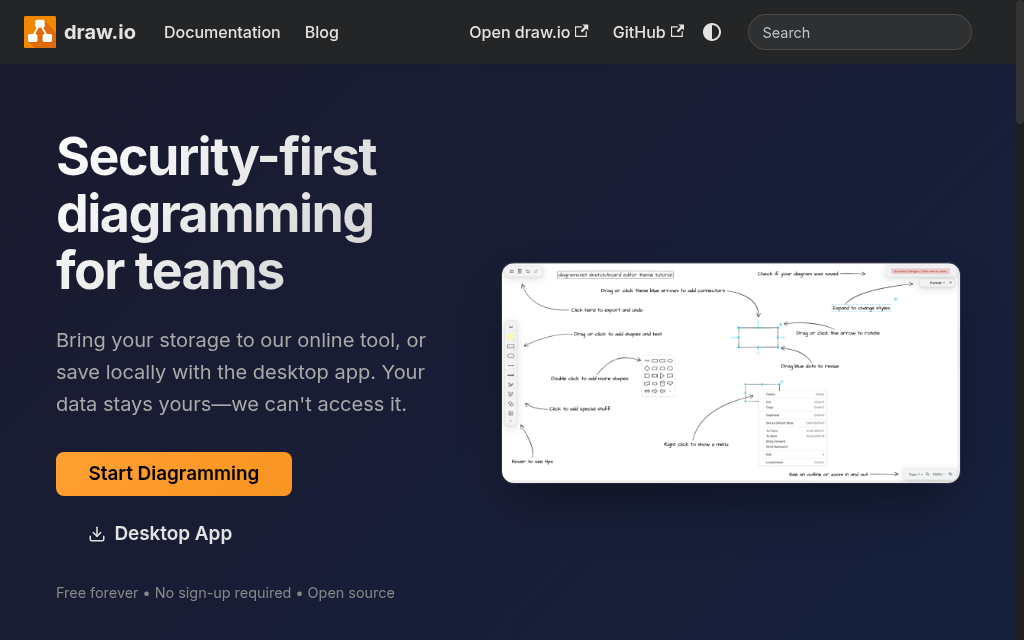
Draw.io combines a free, open-source diagram editor with native AI generation. Its updated Generate dialog accepts a prompt and follow-up changes, then inserts the result as editable shapes. You can also configure model providers and your own API keys.
This gives you a broad canvas after the first AI draft: adjust connectors, labels and layout, then export PNG, JPG, SVG, PDF or an editable source file. The hosted generator and configured external models are different routes. Check which route is available in your installation, especially if your organisation disables AI or restricts data sent to a model.
My experience: My earlier comparison used it as a manual finishing tool: I imported a generated diagram, corrected it and exported an SVG. The current Generate feature adds an AI starting point that was not part of that trial. I would still choose it where keeping an editable source and controlling export are central to the task.
Pricing: The editor is free, including the hosted AI route described in its documentation. Using your own model API may incur provider charges. Confluence and Jira integrations are separate paid products.
7. Jotform AI Flowchart
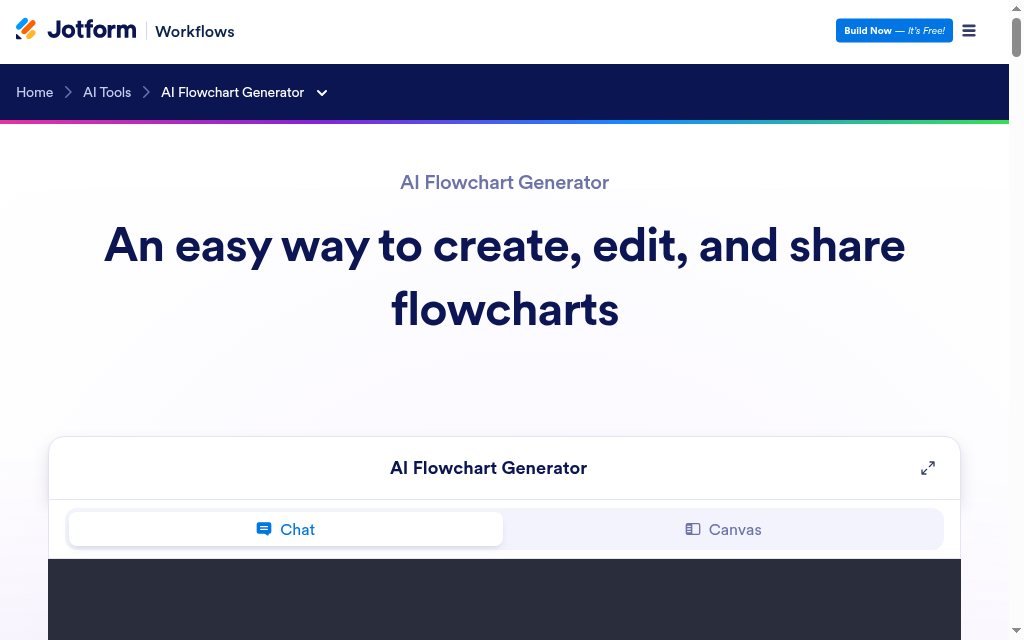
Jotform AI Flowchart Generator is a free standalone AI flowchart tool from the forms company: write what you want in plain language, including the steps, decisions and who is involved, and it builds connected nodes and decision points you can edit by hand or by prompt. It is free with no AI-credit limit, which is rare on this list.
The honest limits are export and collaboration. It exports PNG only, no SVG, PDF or Mermaid, and the tool itself says it is not built for real-time collaboration where several people edit at once. So it is a first-draft, single-user sketch tool: fast and free for a quick decision flow, thin if you need vector export or a team on the same canvas.
In testing: I typed the onboarding process and got a clean flowchart with the decision branches in the right place, at no cost and with no credit counter ticking down, which is a pleasant change. Then I wanted an SVG for a slide and could only get a PNG, and that is the ceiling: great for a quick free draft, limited past that.
Pricing: The standalone generator is advertised as free without an AI-credit limit. PNG is the advertised export; test image resolution if you need to enlarge the diagram for print or a presentation.
8. Cloudairy
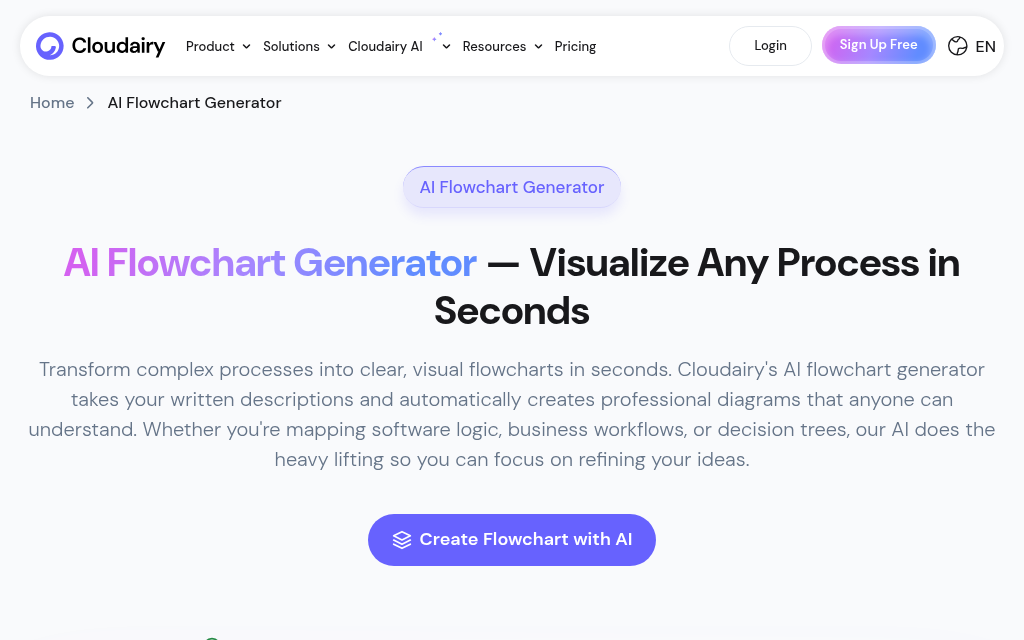
Cloudairy turns a written description into a flowchart on a collaborative whiteboard, and covers the adjacent diagram types too, data-flow, process, tree and mind maps, from the same prompt box. It is a newer, all-in-one workspace pitched at teams.
Free includes 30 AI credits per month, three editable items across boards, docs and projects, and PNG/JPG exports. That makes the export requirement concrete: it works for an image you can paste elsewhere, while vector or document workflows need a check against the paid-plan feature list.
In testing: The onboarding flow generated cleanly and the shared canvas was useful for a simple diagram. I encountered a brief loading hang in that session. Before moving a team’s processes over, I would test revisions, sharing and download with one complete real example.
Pricing: Starter is US$10/member/month billed monthly or US$8 billed annually, with 600 AI credits. Short welcome promotions are separate from the standard renewal price.
9. EdrawMax
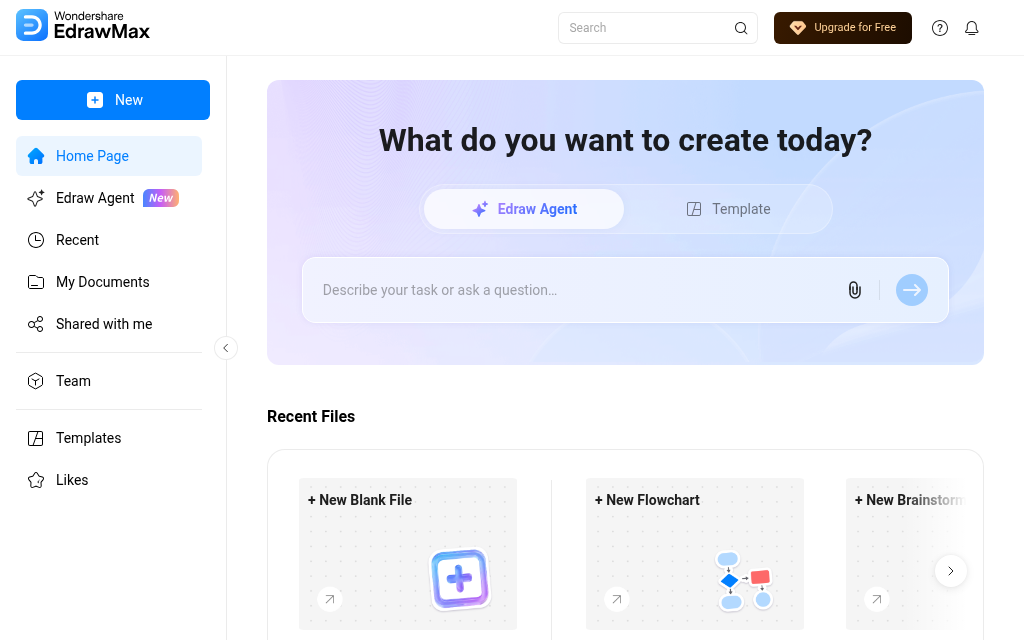
EdrawMax is the broad diagramming workhorse: its AI generates a flowchart from a prompt, it has a Code-to-Flowchart feature, and it covers 20-plus other diagram types, with one of the biggest shape libraries here. If you make many kinds of diagram, not just flowcharts, it is the deepest single tool.
The free AI allowance is 200 tokens, so budget for revisions as well as the first generation. Check the export and AI entitlements attached to the licence you select: desktop software access and an AI-assets subscription are not the same purchase.
In testing: The onboarding example showed the advantage of a wide shape library: the same environment can support other process and technical diagrams. I would choose it for repeated diagramming work across several formats, and use the trial to test the actual export and editing tasks before buying.
Pricing: The current offer shows US$69 for six months, not a year, and US$198 for a perpetual software licence. Review any optional renewing AI-assets trial or subscription separately, including its token allowance.
10. Coursebox
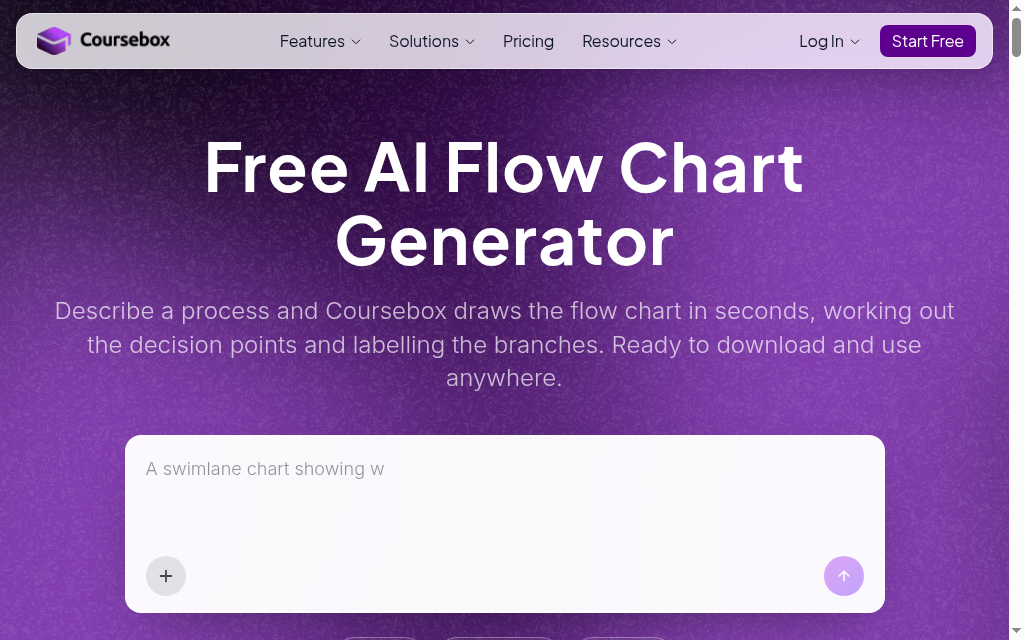
Coursebox generates flowcharts from a process description, including decisions and branches. You can download the resulting image for other work or use it in a course. The training workflow adds lessons, questions and assessment around the process instead of stopping at a diagram. I work on the product.
For training, a diagram can show the process while a question checks the learner’s next decision. Review both against the actual procedure before assigning them. Course delivery can use the Coursebox LMS, a SCORM export or an LTI connection, with different feature availability. LTI is a live integration rather than a downloadable image or course-file format.
In testing: The onboarding example kept the branches intact, and turning a decision into a learning question was the useful next step. For a standalone diagram, check that the downloaded image meets your layout and resolution needs. Choose a dedicated diagram editor if you need editable connectors, specialist notation or vector source files.
Pricing: Free to start with an account; paid plans expand creation allowances and learning features. Check the standalone image output separately from course exports. Self-hosted SCORM does not include every live AI or discussion feature.
Most tangled diagrams come from a vague prompt. Give the AI four things in order: the start (what kicks the process off), the steps in sequence, the decision points and their branches, and the end state. Spell out the branches as conditions, not hints.
Prompt to steal: “Draw a flowchart for learner onboarding: sign up, watch the intro, take a pre-assessment. If the score is under 70%, route to a remedial module, then retake; if 70% or over, go to the main course. End at the certificate.” Then edit shapes and labels by hand or with follow-up prompts.
Which should you use
Whimsical is my starting point for a quick editable chart. Mermaid suits diagrams kept as text beside technical documentation; Draw.io combines an editable source with broad exports and AI generation. Miro suits a group workshop. Coursebox fits downloadable process visuals and the next step of turning the process into training. Choose the output you need, then test one complete decision path.
If your diagram is really a step toward a course, our guide to AI course creation tools covers turning that outline into a finished course.
Check the logic before sharing the diagram
In its 2025 research on AI dependency DORA reports AI use among 90% of technology professionals, while 30% report little or no trust in AI-generated code. That is evidence about technical work, not a measurement of diagram accuracy. For a flowchart, my equivalent check is to walk the branches against the source procedure before anyone relies on them.
| Check | What to look for |
|---|---|
| Every decision | A labelled route for each possible answer |
| Exceptions | A real destination for failed checks, missing information and retries |
| Ownership | A person or system responsible for the next action |
| Finish | An explicit end state rather than an arrow that goes nowhere |
| Export | Readable labels and an editable source saved where needed |
Frequently Asked Questions
Yes. Most of the tools here take a plain-English description of a process, the start, the steps, the decision branches, and draw an editable flowchart in seconds. Some also accept code or Mermaid syntax. The output is a first draft: you will still rearrange shapes and fix a label or two, but it saves the blank-canvas stage.
Whimsical is a useful start for a quick editable chart, while Mermaid suits text-based diagrams kept with documentation. Draw.io offers a free editor with native AI generation and broad exports. Jotform is a free prompt-based option with PNG output. Compare the exact free limits and required output.
Export depends on the tool and plan. Draw.io offers image, PDF and editable-source options; the Mermaid editor exports SVG and PNG. Jotform advertises PNG, while Cloudairy lists PNG/JPG on free. Check the required format before choosing, especially for print or later editing.
AI can omit a route, mislabel a decision or connect the wrong steps. Walk each possible path against the source procedure. Editable-shape tools let you fix connectors on the canvas; Mermaid uses text, and Draw.io supports both manual editing and AI generation.
You can ask ChatGPT for Mermaid code and render it in a compatible editor. Check the branches and labels against the actual process, then save the editable text as well as any exported image. AI service limits depend on the account or model used.
Carolina Martin
Carolina is a highly experienced learning designer with tech start-up experience. She is based in Sydney and previously designed courses alongside Coursebox founder Travis in a previous job. She is passionate about delivering engaging learning experiences and brings the same perspective to customer experience too. She manages our customer support documentation and product testing processes.

