8 Best AI Tools for Vocational Education in 2026 (What I Use)
My review of 8 AI tools for vocational education in 2026, covering course delivery, learner resources and skills rehearsal, with practical checks and costs.

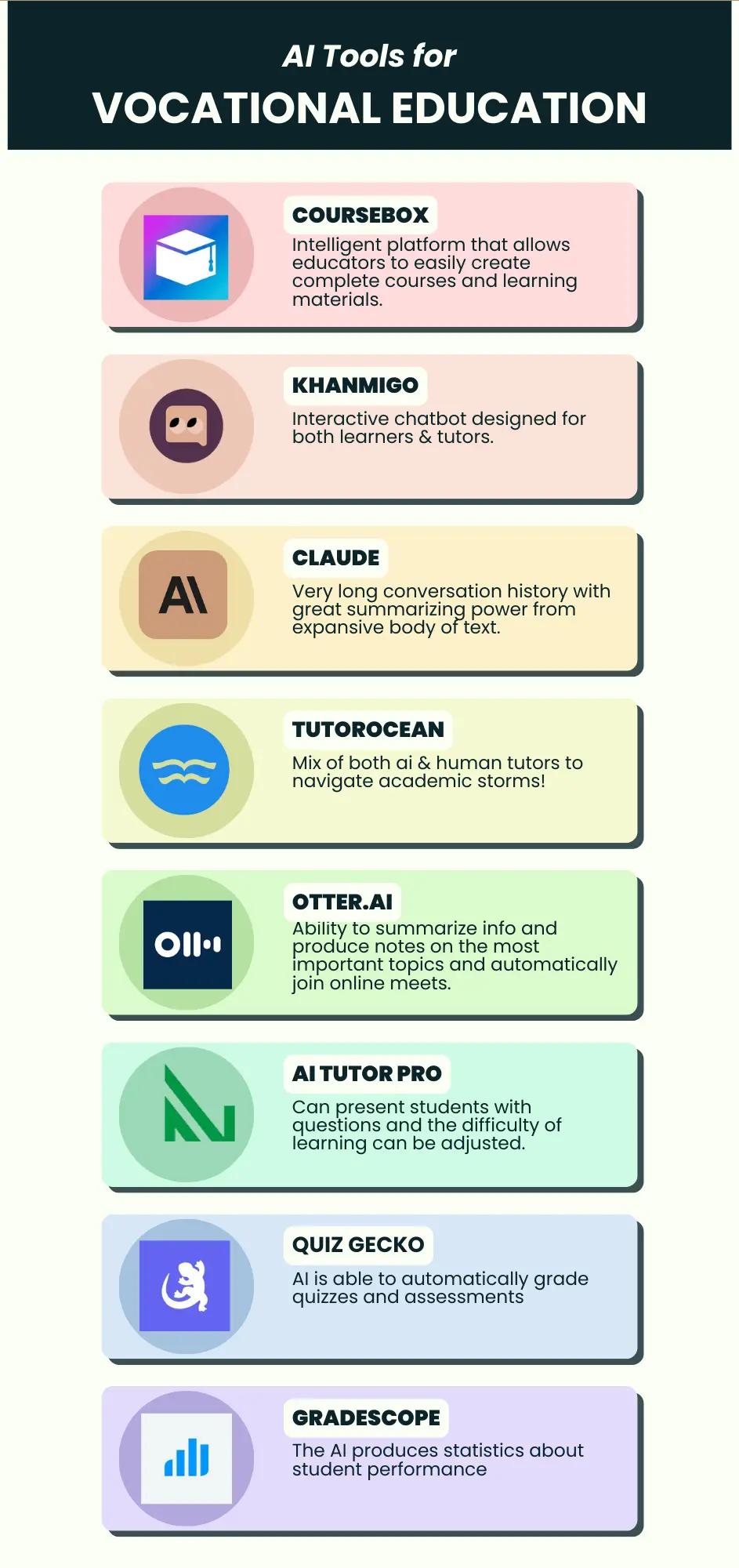
The best AI tools for vocational education in 2026 include Coursebox for courses and learner delivery, ChatGPT for drafts, Synthesia for video and Uptale for immersive rehearsal.
- Use Canva for learner resources, QuillBot for edited plain-English wording, Otter for reviewed notes and Perplexity for finding primary sources.
- Match each output to the unit requirements. A generated question, transcript or virtual decision does not by itself establish physical competence.
- Coursebox remains my first choice here for combining course creation, learner support and delivery. Review its plan’s creation limits, LMS features and export options.
- Compare production effort, device access, shared administration and actual usage allowances alongside subscription prices.
Choose your main job for a starting shortlist of four tools. Compare all eight entries for the full range.

Set up your branded LMS and deliver training with AI
Vocational trainers need to prepare clear lessons, create useful assessments and keep material aligned with the work learners will do. AI can help with that production work, but preparing a lesson and judging a learner’s practical competence are different jobs. These eight tools cover course delivery, content, media, reviewed notes and skills rehearsal.
I’m Carolina, a learning designer who builds and assesses courses for trade schools, RTOs and VET providers. These are the AI tools I actually reach for in that work, grouped by the provider job each does: building and assessing the course, drafting and simplifying content, producing media, capturing evidence, and practising hands-on skills. If you train a corporate workforce rather than run vocational programmes, our AI tools for workforce training guide is the right lane for that.
I work at Coursebox, which is included here for course creation and delivery. Its AI LMS can keep lessons, assessments and learner support together. The other tools cover supporting jobs, from draft writing to immersive practice. This guide focuses on trainer and provider workflows, with Australian VET examples.
How I picked these AI tools for vocational education
I compared these tools against four parts of the provider workflow:
- Provider job: Course creation, learner support, resources, reviewed records or rehearsal.
- Useful output: What the trainer receives and where it fits into delivery.
- Assessment fit: How the output supports the required evidence and the assessor’s work. Check export only where the tool needs to connect to an LMS.
- Cost and limits: The relevant allowance, tier, administration needs and production effort.
Start with the job that takes the most time. Coursebox covers course creation, learner support and delivery; ChatGPT helps draft material; Synthesia and Canva support media; Otter helps capture reviewed notes; Perplexity helps locate sources; QuillBot helps revise wording; Uptale supports immersive rehearsal. Buy the output you need and check how it reaches your learners.
The best AI tools for vocational education compared
| Tool | What it does for a VET provider | Best for | Starting price |
|---|---|---|---|
| Coursebox | Creates courses, assessments and learner support | Course authoring and LMS delivery | Free with creation limits; paid plans |
| ChatGPT | Drafts from supplied unit material | Content and question drafts | Free; Plus US$20/month |
| Synthesia | Produces narrated avatar video | Explainer and induction media | Free; Starter US$29/month |
| Canva Magic Studio | Designs learner resources | Worksheets, slides and job aids | Free; regional paid pricing |
| Otter.ai | Transcribes recordings and meetings | Reviewed workshop and conversation notes | Free; Pro US$16.99/month or US$8.33 annually |
| Perplexity | Finds and summarises sources | Research for course updates | Free; paid plan at local checkout |
| QuillBot | Revises and summarises text | Trainer-reviewed plain English | Free; Premium US$8.33/month annually |
| Uptale | Builds interactive 360-degree scenarios | Hazard recognition and procedure rehearsal | Education proposal; enterprise prices published |

Plan details were checked in October 2026. Prices below state the billing basis where verified; regional and institutional offers can differ.
The 8 best AI tools for vocational education
1. Coursebox: building and delivering vocational courses

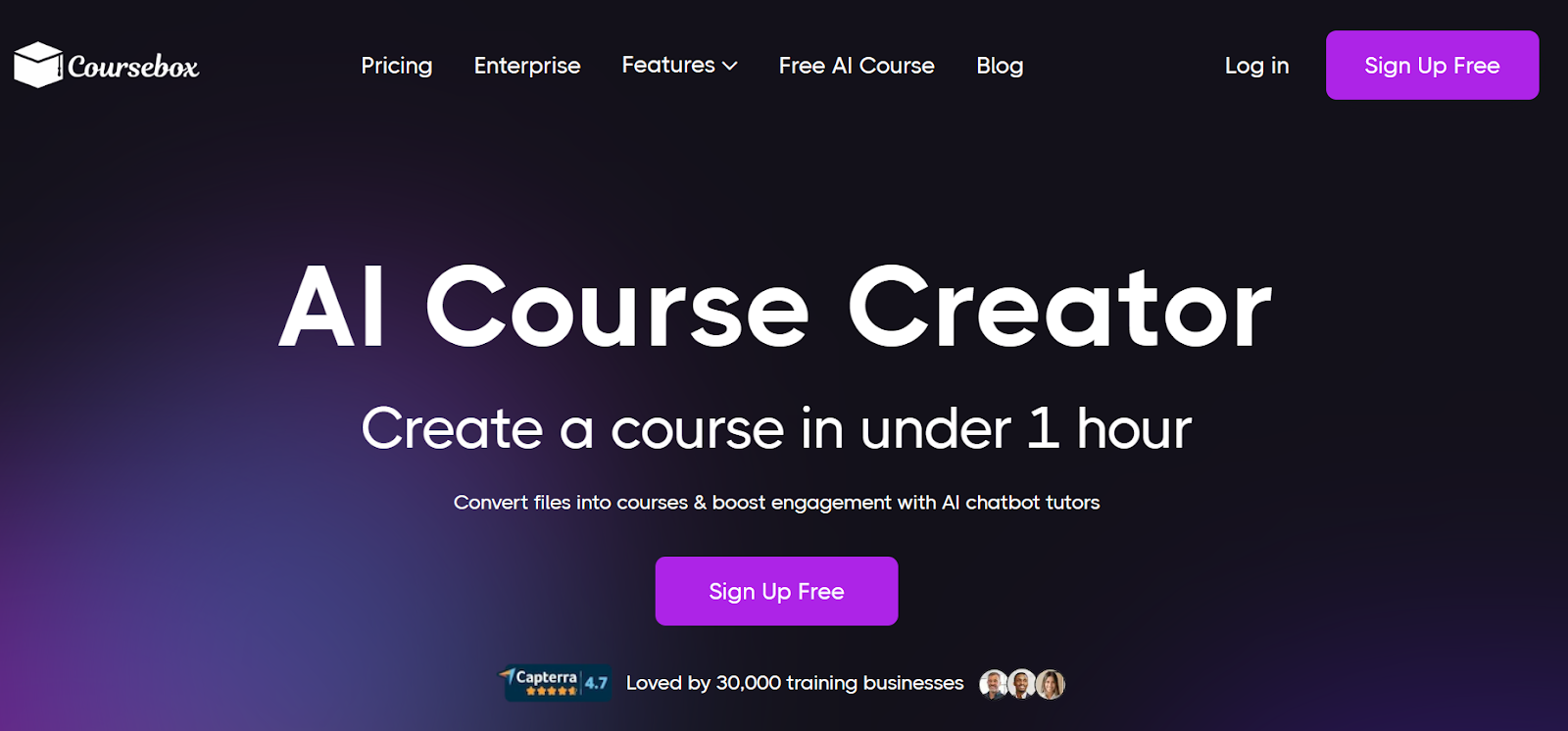
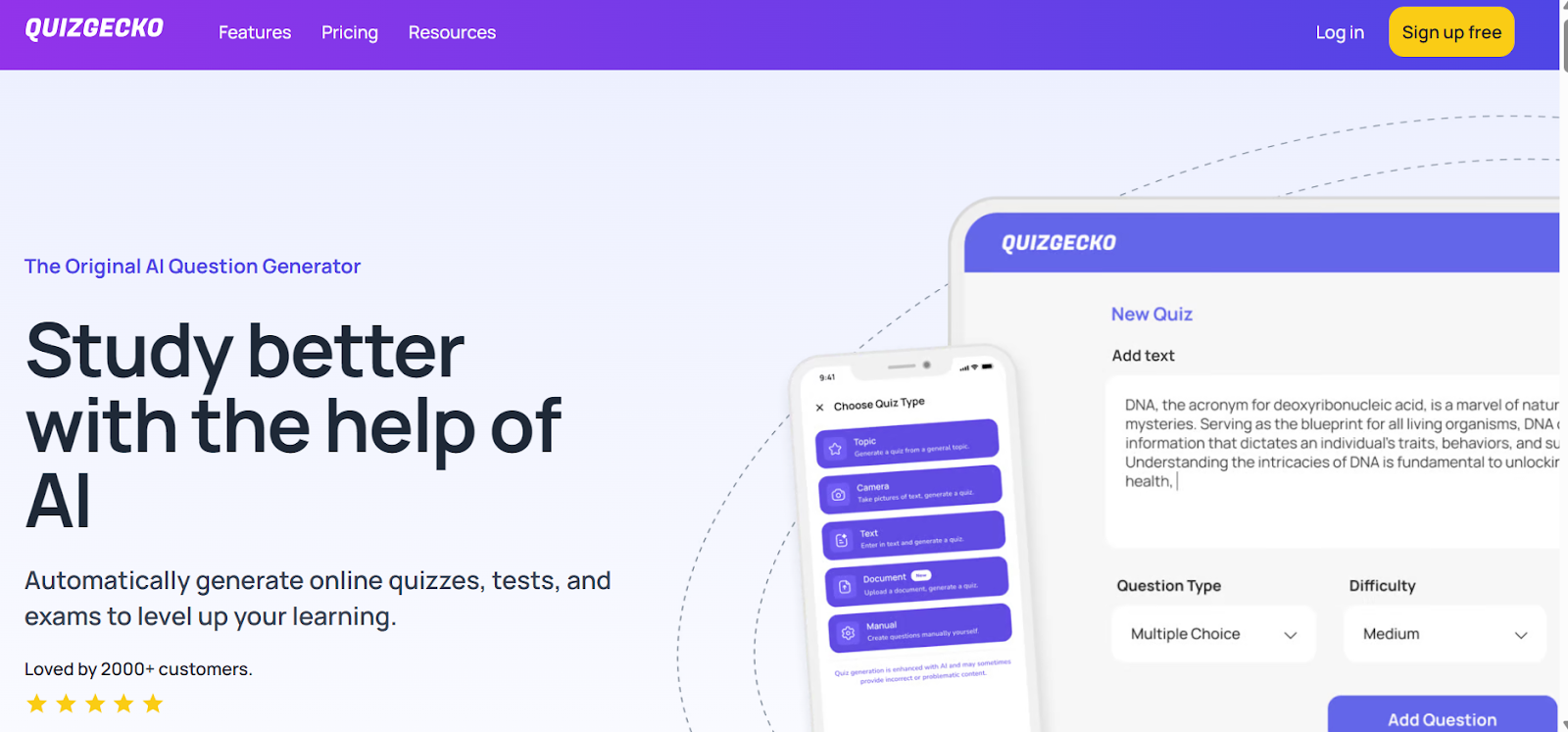
Coursebox combines course creation, assessment activities and learner delivery. Upload a manual, unit document or slide deck, edit the generated structure, then add lessons, questions and rubric-based grading. AI learner help supports students while the LMS assigns and tracks their training.
For a provider, the useful workflow keeps the learning material, assessment activity and learner support together. Paid LMS features include groups, learning paths and advanced reporting; branded delivery and SCORM options depend on the plan. Coursebox also supports AI video, so it should not be dismissed as a text-only authoring system.
What I check: My review starts with the unit’s evidence requirements, then checks the lesson and questions against them. A good knowledge question cannot establish that an apprentice safely performed a physical task. Use the platform to prepare, support and record learning, with an appropriately qualified assessor making the competency judgement.
My call: The strongest fit here for turning provider material into courses and managing delivery. Keep practical observation and the assessor’s decision in the assessment process.
Pricing: Free includes unlimited learners and three mini-courses of up to five pages. Creator and Pro expand creation; Pro + LMS adds branded LMS features and advanced reporting. Confirm the export format and included assessment functions on the selected plan.
2. ChatGPT: drafting content and assessment questions

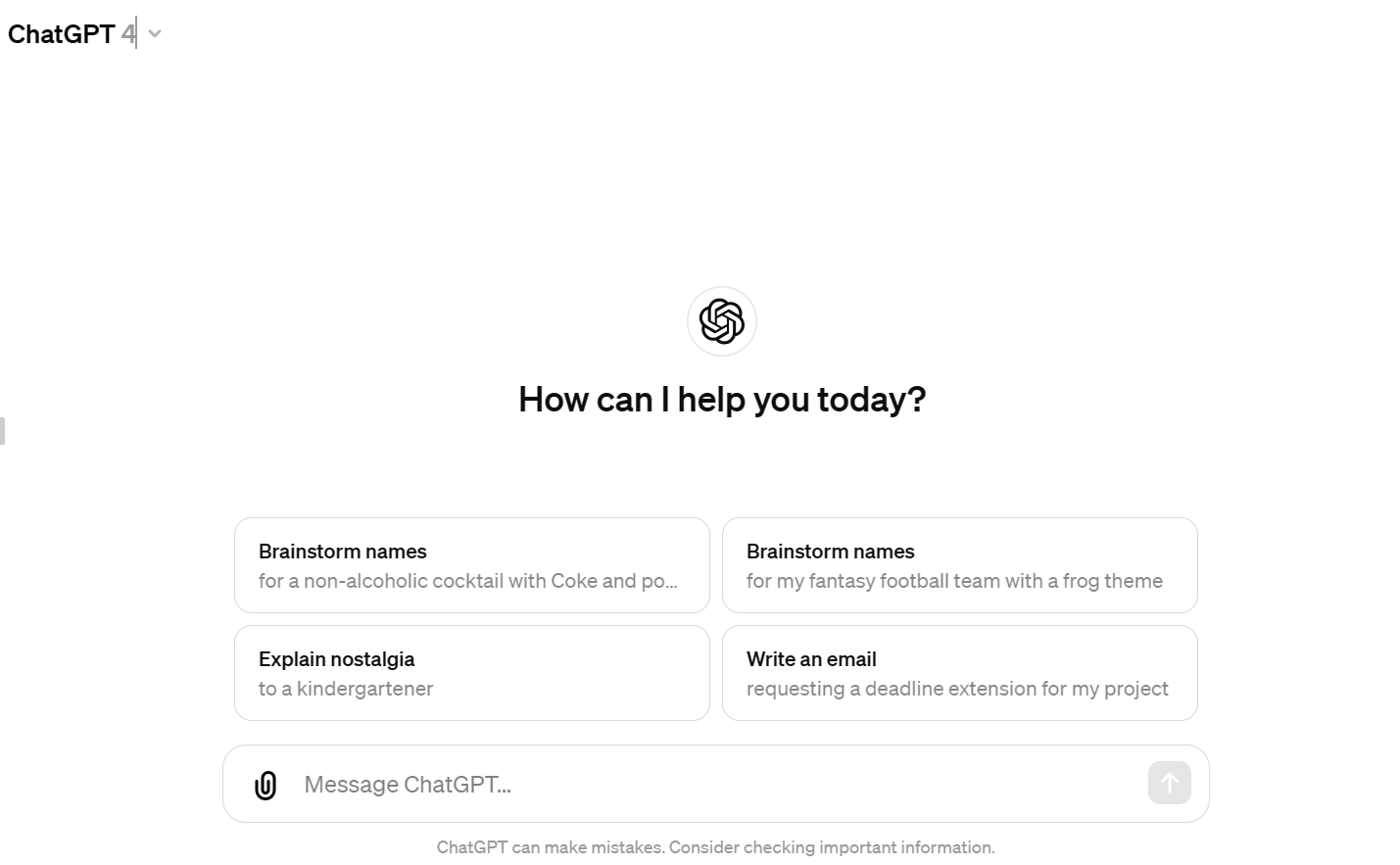
ChatGPT helps turn supplied training material into draft lesson explanations, workplace scenarios and knowledge questions. Give it the relevant unit text and a trade context instead of asking it to recall the requirements. You can then refine the wording and discuss gaps in the draft.
It is a drafting and research workspace rather than your enrolment and learner-reporting system. File-based work can make the task more specific, but supplying a document does not guarantee every generated statement is supported by it. A provider still needs a place to deliver the finished course and record assessment.
My review habit: I ask for a mapping between each proposed question and the supplied requirement, then inspect that mapping myself. This exposes a question that merely repeats a definition when the learner needs to explain a workplace decision. Keep the referenced document version with the review notes.
My take: Useful for drafting and improving training material, especially when a trainer supplies the source and checks the output. It complements the authoring and delivery workflow.
Pricing: Free is available. Plus is US$20/month. Business is US$20/user/month annually or US$25 monthly, with a two-user minimum; Enterprise and Edu are quoted. Choose a provider-approved workspace for student or employer information.
3. Synthesia: explainer and induction video

Synthesia turns a script into narrated avatar video, with options for multilingual content and updates. It suits induction, explaining a procedure or introducing a workplace scenario without recording a presenter every time. You can combine that explanation with your own approved images or real task footage.
A narrated explanation is different from showing the correct hand position, tool setting or equipment movement. Use actual footage for those details. The platform also has dubbing, translation and interactive capabilities, with access and credit consumption varying by plan.
My production check: Before committing to a whole unit, I would review one short scene for technical pronunciation, captions and consistency with the equipment shown. Compare the time to correct and publish that scene, as well as the first render. That is more useful than treating the advertised language count as a guarantee for every trade term.
My verdict: A good choice for repeatable explanations and induction media. Combine it with real demonstrations when learners need to see a physical technique.
Pricing: Basic is free with limited credits and watermarked video. Starter is US$29/month on monthly billing. Credits are shared across supported AI features; confirm downloadable output, translations and any required LMS export on the chosen tier.
4. Canva Magic Studio: worksheets, slides and job aids

Canva Magic Studio supports drafting and designing slides, worksheets, images and other learner resources. Use it to turn an approved process into a visual handout or workshop poster, then adjust the layout and wording for the cohort. Brand controls help keep resources consistent across trainers.
It produces resources rather than manages enrolments or decides competence. The useful output might be a printable PDF or a slide deck used inside the learning system. AI images can be unsuitable for technical instruction if they depict the wrong equipment, safety gear or sequence.
What I review: My final pass checks whether the job aid is readable where it will be used: on a phone, in print or beside the equipment. For a safety poster, an accurate photograph and a clear sequence can do more than an attractive generated illustration. Check the image against the actual procedure before printing it.
My take: A practical addition for learner resources and visual consistency. Start with approved instructions and judge the design by how easily a learner can use it.
Pricing: Free includes access to some AI tools with limits. Pro, Business and Enterprise offer different allowances and administration features; pricing is regional. Check whether your provider qualifies for an education offering and which features it includes.
5. Otter.ai: workshop and supervisor conversation notes

Otter.ai records audio, transcribes it and produces searchable notes and summaries. It can help turn an employer meeting, trainer explanation or supervisor conversation into material you can review and reuse. Recordings and transcripts serve different purposes from a generated summary.
For vocational work, a transcript may capture what someone said but cannot show every physical action or establish who performed it. Keep the recording, speaker identity and relevant context when the conversation supports an assessment record. Workshop noise and technical vocabulary can introduce transcription errors.
My evidence check: I would compare the transcript with the recording around any safety instruction or assessment observation. Correct the speaker and term before using the passage. A polished summary can omit a hesitation or correction that changes the interpretation. Use an approved recording and storage process for learner and workplace information.
Where it fits: Useful for reusable notes and reviewed conversation records. It supports the assessor’s evidence collection, rather than supplies an automatic competency decision.
Pricing: Basic includes 300 transcription minutes/month and three lifetime file imports. Pro is US$16.99/user/month or US$8.33 annually; Business is US$30 monthly or US$19.99 annually. Check import and recording limits separately.
6. Perplexity: finding sources for course updates

Perplexity can summarise a research question and link to sources. For a vocational trainer, that helps locate a changed standard, industry guidance or an explanation of unfamiliar equipment. Research and file features can support a broader investigation than a single search answer.
The source trail is the useful part. A current-looking answer may cite an older unit, a secondary explanation or guidance for another jurisdiction. Open the actual source and check its issuing body, version, date and applicability before changing the course.
What I keep: My update notes record the primary document and the exact requirement that changed. I would compare the old and new versions rather than accept a summary saying that the standard has changed. The course can then show which lesson or assessment needs revision and who approved it.
My read: A useful research starting point for trainers. Treat cited answers as leads and retain the source document behind the final course change.
Pricing: Free is available. Pro expands research, uploads and creation features; confirm the current local subscription at checkout. Organisational administration and data requirements may need an Enterprise plan.
7. QuillBot: plain-English revisions of training material

QuillBot offers paraphrasing, grammar and summarising tools for revising dense training text. A trainer can prepare a shorter explanation of a procedure, then compare it with the original. Its modes and synonym controls support different rewrites, but do not certify a reading level or technical accuracy.
Simpler wording should preserve the requirement. A learner may need both the plain explanation and the industry term they will encounter at work. Rewriting all technical language out of the lesson can make the resource easier to read while leaving the student less prepared for the workplace.
The check I use: I compare verbs, conditions and quantities before accepting a rewrite. “Must isolate the supply before opening the panel” must not become “consider turning off the power”. Keep the safety instruction intact, then explain unfamiliar terms around it.
My verdict: Useful for an edited plain-English pass, especially alongside examples and visuals. Review the meaning and test the explanation with the cohort.
Pricing: Free paraphrasing is limited to 100 words and Standard or Fluency modes on the current page. Premium is listed at US$8.33/month billed annually, with broader rewriting access. Compare the checkout price for other billing periods.
8. Uptale: immersive hazard recognition and procedure rehearsal

Uptale builds interactive training around captured environments and 360-degree scenes. Add questions, decision points and guidance to a workplace scene, then deliver it through supported web, mobile or VR devices. Its AI features help with production, coaching and analysis.
This can let a learner inspect a hazardous area or rehearse the order of a procedure before entering the real workplace. A virtual decision is not the same as physically operating equipment. It is useful preparation, with practical assessment designed around the actual skill and required conditions.
My pilot question: I would choose one costly or hard-to-access scenario and define the observable decision first. Then check what interactions and results the platform records, whether the learner can access it on the available devices, and how a trainer will debrief it. The scenario-production workload belongs in the buying calculation.
Where I land: Shortlist it for immersive workplace orientation and decision rehearsal. Use real equipment and appropriate observation for physical competence.
Pricing: Education needs a scoped proposal. The public US enterprise page lists Pro from US$17,000/year for one key user and 100 learners or 1,000 views; this is not an education quote. Specify author access, usage, devices, production and LMS integration.
What each output can tell an assessor
| Output | Useful for | What still needs checking |
|---|---|---|
| Course and quiz | Learning, feedback and knowledge checks | Coverage of the unit and required evidence |
| Transcript or summary | Reviewing a conversation or explanation | Speaker, recording accuracy and actual performance |
| Avatar video or job aid | Explaining an approved process | Accuracy of instructions and equipment shown |
| 360-degree scenario | Hazard recognition and decision rehearsal | Physical skill and permitted assessment conditions |
ASQA’s responsible AI guidance asks providers to review and verify AI-supported outputs and avoid relying solely on AI for assessment judgements. My workflow keeps the original requirement, the reviewed resource and the assessor’s decision identifiable.
Which AI tool should you choose?
Eight tools, matched to the provider job you are trying to do:
| If your priority is | Go with |
|---|---|
| Building, assessing and delivering the course | Coursebox |
| Drafting content, scenarios and questions | ChatGPT |
| Explainer and induction video without filming | Synthesia |
| Fast, on-brand worksheets and job aids | Canva Magic Studio |
| Reviewed workshop and conversation notes | Otter.ai |
| Finding primary sources for course updates | Perplexity |
| Plain English for a mixed-literacy cohort | QuillBot |
| Immersive hazard recognition and procedure rehearsal | Uptale |
Start with the job you are stuck on, not the longest feature list. For adjacent reading, our guides to what vocational education and training is and the benefits of vocational education set the wider context, and AI tools for workforce training covers the corporate lane.
Pilot one unit before buying a toolkit
NCVER reports that 26.4% of Australia’s domestic population aged 15 to 64 participated in nationally recognised VET in 2025. Such a broad audience needs resources tested against the actual cohort, rather than a single assumed level of language or digital confidence.
- Scope: Select one unit and define the specific production or learner-support job.
- Review: Keep the current source documents and ask a trainer to review the generated content.
- Access: Try the resource on the devices and delivery format learners actually use.
- Record: Check the assessment record, practical observation and export before broadening the rollout.
Store the approved unit version, reviewed learning resource and learner evidence with clear ownership. A summary is easier to read, but the original recording or observation may be needed to understand the result.
NCVER also recorded 9.2 million enrolments in stand-alone subjects in Australia in 2025, up 3.0% from 2024. Those are enrolments rather than unique students. For short training, compare how easily the tool updates and delivers one subject instead of paying only for a full-course workflow.
Frequently Asked Questions
Coursebox supports courses and learner delivery; ChatGPT drafts material; Synthesia and Canva produce media; Otter helps with reviewed notes; Perplexity locates sources; QuillBot revises wording; Uptale supports interactive rehearsal. Choose according to the output and provider workflow you need.
AI can help create lessons, questions and activities and organise them for delivery. A trainer needs to review the material against the unit, including evidence requirements and assessment conditions. Physical skills need appropriate practical evidence and an assessor’s judgement.
These tools can support preparation, learner support, research and recordkeeping. ASQA’s responsible AI guidance calls for reviewed and verified outputs and assessment practices that still meet the training product requirements. Neither a generated lesson nor a SCORM package guarantees compliance.
Coursebox Free includes unlimited learners and three mini-courses of up to five pages. ChatGPT, Canva, Otter and QuillBot also have limited free options. Choose one representative task and test its output before adding paid licences; compare recording, creation and export limits.
AI can reduce drafting and production work, but it does not remove the need to teach, observe performance, support learners and make assessment judgements. A provider should define which tasks AI assists and who reviews the result.

Carolina Martin
Carolina is a highly experienced learning designer with tech start-up experience. She is based in Sydney and previously designed courses alongside Coursebox founder Travis in a previous job. She is passionate about delivering engaging learning experiences and brings the same perspective to customer experience too. She manages our customer support documentation and product testing processes.